Spreadsheet vs Notion for Freelancers: Which Setup Should You Choose?
Spreadsheet vs Notion for freelancers: compare client records, linked project details, views and sharing to pick a reliable setup you can maintain.
By Notion Freelancer OS by Cosmo Suite · Editorial policy
Published · 8 min read

If your freelance records are spread across a client list, project notes and invoice tabs, a new tool can look like a fix. But moving data takes time, and a new workspace can create another place to update.
For freelancers, a spreadsheet is often easier when the work fits a flat list of rows and columns. Notion can be a better fit when client, project, proposal and meeting records need their own pages and links. The choice depends on what you need to find and update each week.
This guide compares both setups using the same freelance admin tasks. You can try the decision table before moving any records. If you want a ready-made Notion structure, see what Notion Freelancer OS includes and compare it with the fields you use now.
Key Takeaways
- Keep a spreadsheet when columns, formulas and filters already answer your regular questions.
- Consider Notion when project context, notes and related records need to sit together.
- Test one live client workflow before migrating your full history.
- Keep invoice and payment facts tied to the system where they are confirmed.
- Sharing settings and manual updates matter in either tool.
Spreadsheet vs Notion for freelancers: the decision table
Choose the tool that makes your next admin action clear with the least extra maintenance. A spreadsheet works well for a compact register. Notion becomes useful when you need to move between records and the context around them.
| Need | Spreadsheet | Notion | Better fit |
|---|---|---|---|
| A short lead or invoice list | Columns, sorting and filters | A table database with properties and views | Use the one you already update |
| Notes attached to a client or project | A notes column, cell comment or separate tab | A page with details and links | Notion when context keeps growing |
| Totals and calculations | Formulas and summary rows | Formulas, rollups or manually entered summaries | Spreadsheet for a simple calculation grid |
| Several views of the same work | Filters or filter views | Saved database views with filters and sorts | Either; test the view you need |
| Client-specific access | File and range sharing controls | Page and workspace permissions | Check the exact access settings first |
| A simple export or handoff | Familiar tabular formats | Database export options | Test a sample export before depending on it |
Use the table as a starting point and check the settings of your own file or template. Both systems need accurate records. A due date does not send a message, and a payment status does not confirm money arrived unless you check the source.
What each tool makes easy to maintain
A spreadsheet keeps information visible in a grid. Each row can represent a lead, project, invoice or expense, and columns can hold the fields you choose. In Google Sheets, filters can narrow a list, and filter views let you save a specific way of sorting or filtering it. If you already know how to update the sheet, the main work is keeping its columns and formulas understandable.
A spreadsheet is a grid of cells arranged in rows and columns. A Notion database is a collection of pages with properties you can use to organize and view records.
Notion databases also show records in tables, but each database item is a page. Properties can capture a status, date, number, URL or other detail. You can make views that filter or sort records, and relations can connect pages across databases. This can help when a project needs notes and links beyond a single row.
Both tools can track a client name, project status and next action. The choice comes down to where you want client context to live and how much structure you will keep current.
See Google's sort and filter guidance for Sheets and Notion's guides to database properties and views, filters and sorts. Build a small example in the version you use; menu names and options can change.
Compare them with one freelance workflow
Use the same client enquiry in both tools. Record its source, stage, last contact, next action and next-action date. Then add a proposal and, if the client accepts, a project. This test shows whether you need a list or connected records.
In a spreadsheet, one row can keep the enquiry and next action together. A second tab can hold projects or invoices, with a client reference that you keep consistent. A filter can show open enquiries or actions due in a chosen period. This is a practical setup when the information is short and your questions are answered by filtering or calculating across rows.
In Notion, the enquiry can be a database page. A relation can connect it to a client and later to a project. The client page can hold longer notes, while a project view shows the work that is active. Notion's relations and rollups guide explains these features. They can make context easier to follow, but you must choose what belongs in each database and keep the links current.
Try to answer the same questions without searching through email: What needs a reply? Which proposal is waiting? What work is due next? If either setup makes the answer hard to find, change the fields or view before you import more history.
When a spreadsheet is the better choice
Keep the spreadsheet when its current shape is easy to explain and update. A flat list is often enough if each client or project needs a few fields, your calculations are straightforward, and one row gives you the next action.
A spreadsheet can also make sense when you regularly pass tabular data to an accountant, bookkeeper or other tool. Export and import formats are not a complete workflow, so test the exact handoff you need. Keep a source copy until you confirm that dates, amounts, labels and formulas arrived as expected.
Watch for the point where adding another tab or copy of a client field creates confusion. If the same details have to be updated in several places, write down which location is authoritative. You may be able to simplify the sheet before switching tools.
When Notion is the better choice
Consider Notion when the record needs more than a row: meeting notes, proposal links, project context and related tasks all need to be found together. A database item opens as a page, and relations can connect that page to other records. A filtered view can then show only the projects or actions you want to review.
The structure needs upkeep. Decide which details belong on the client page and which belong on the project page. Remove fields you do not use. Add relations only when they help answer a real question, since each connection is another thing to configure and maintain.
A date field helps you notice when to act. You still need to contact the client through your email or calendar tools and record what happened. If you need automatic email capture, sequences, payment handling or separate client access, check the specific software and settings that provide it.
A low-risk way to choose and move
Start with a small trial instead of redesigning your whole business. Use one current client and one active project. Include a next action and date, then track a proposal or invoice only if it is part of that real workflow.
During the trial, check whether you can:
- Find the current status without interpreting several labels.
- See the next action and when you plan to do it.
- Open the project context from the client record.
- Confirm the invoice amount and payment status against the original source.
- Share only what the intended person should be able to see.
If the spreadsheet passes, keep it and make the next review routine explicit. If Notion passes, move only the records you still need. Keep a copy of the source file and compare a few records after import. Notion's sharing and permissions documentation describes controls for pages and workspaces; Google's Drive sharing guide covers file access. Review those settings before putting client details in a shared space.
For invoice records, keep the amount billed separate from money received. This guide to tracking freelance invoices in Notion explains that distinction. For broader monthly tracking, see the freelance income tracker setup.
What actually decides whether the setup works
The tool matters less than the record and review habits around it. A spreadsheet with a clear next-action column can be more useful than a detailed Notion workspace nobody updates. A Notion page with useful project context can be easier to maintain than repeating notes across tabs.
Keep the first version small. Define what counts as an active lead, what status means a proposal is waiting, and which system holds the confirmed invoice amount. Then choose a review time that fits your week. When a workflow changes, update the fields that support it instead of adding more labels by default.
The real test is simple: after a client conversation, can you record what changed and identify the next step? If yes, keep using the setup. If not, adjust the record or the routine before adding another tool.
Why trust this article
We publish Notion Freelancer OS and have a commercial interest in the product mentioned here. This comparison uses current documentation from Notion and Google for their database, filter and sharing features, checked on 22 October 2026. It does not claim that either tool was tested with a customer business. Check current platform documentation and your own access requirements before moving client records.
Where Notion Freelancer OS fits
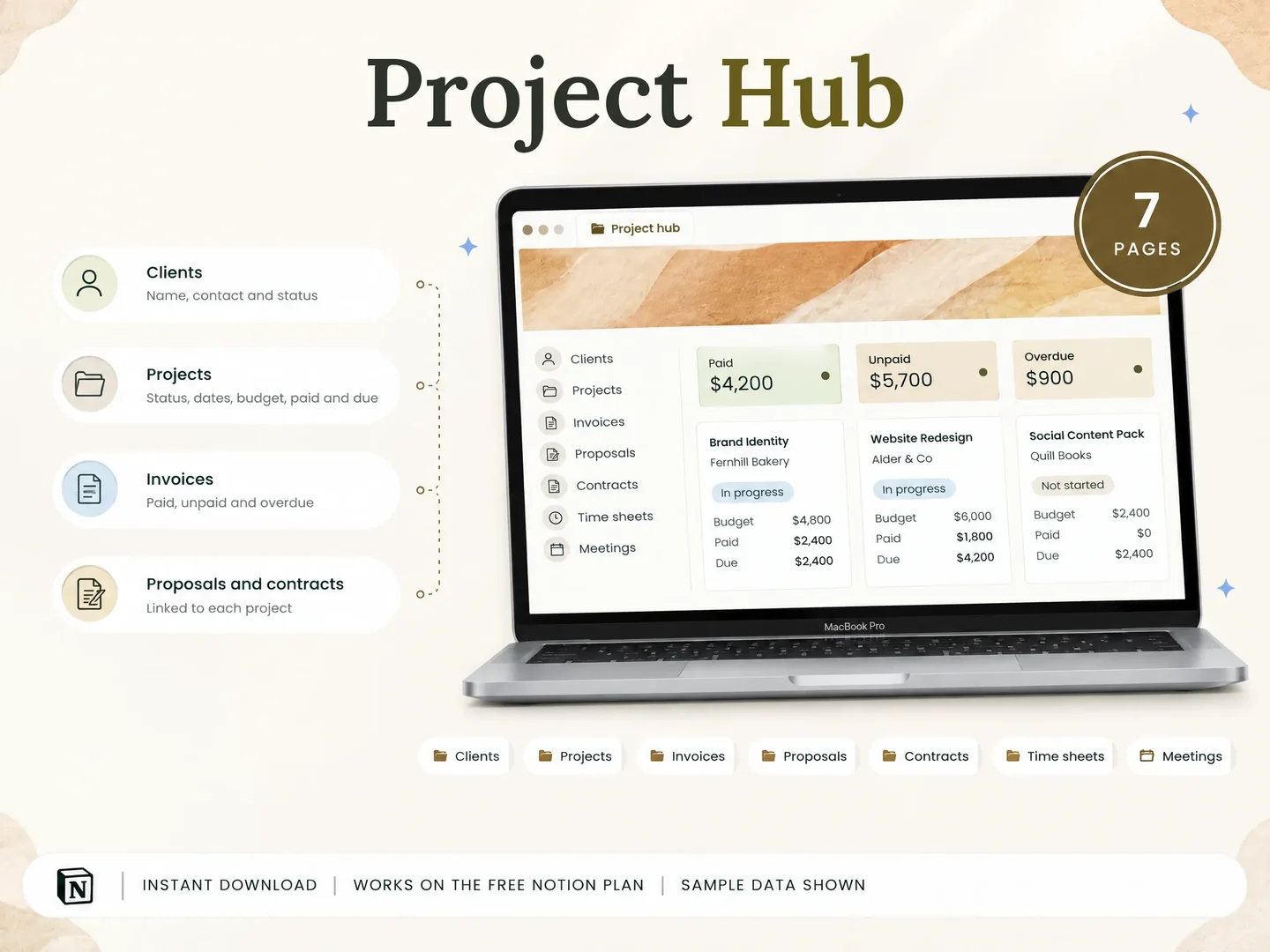
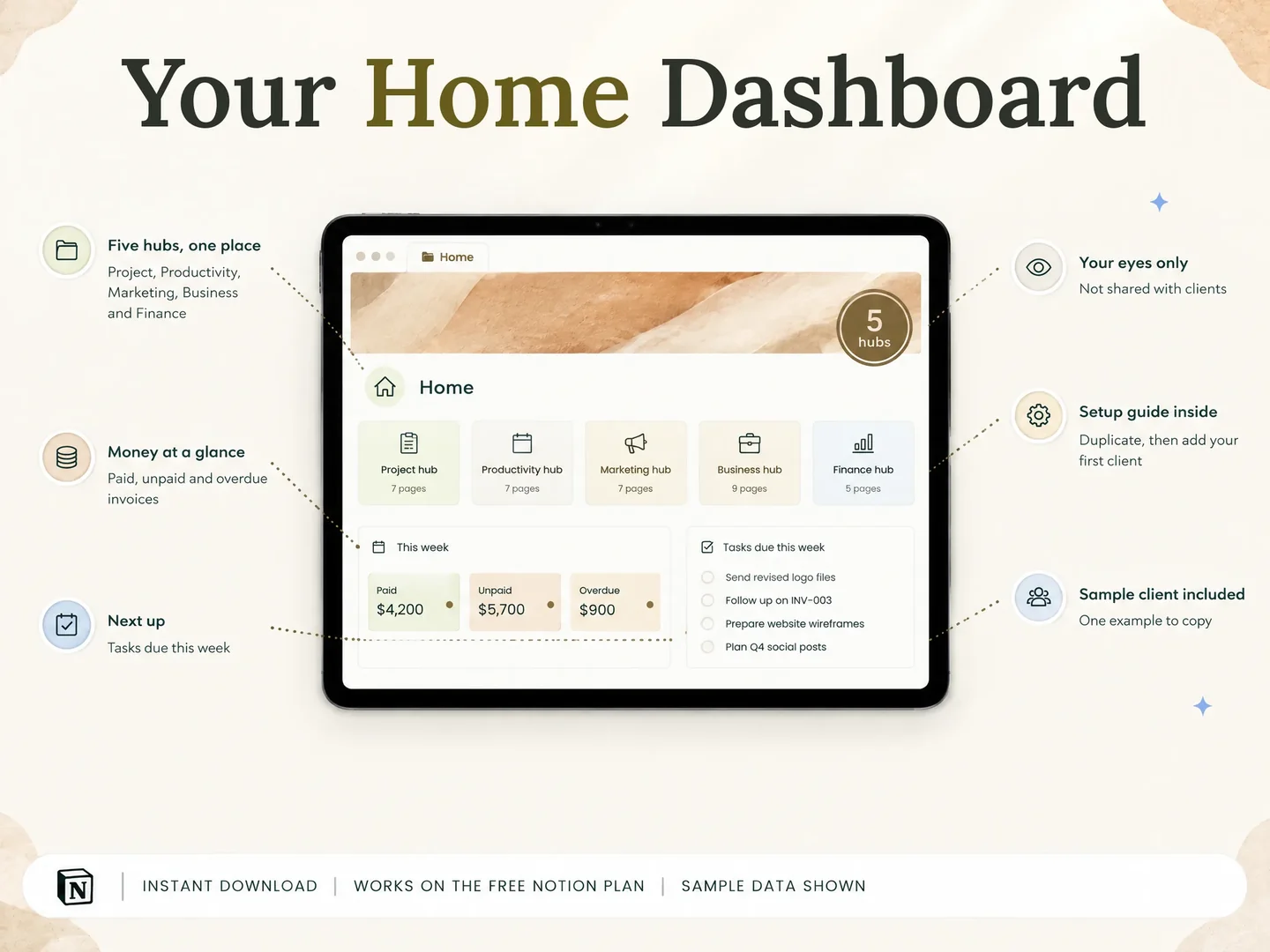
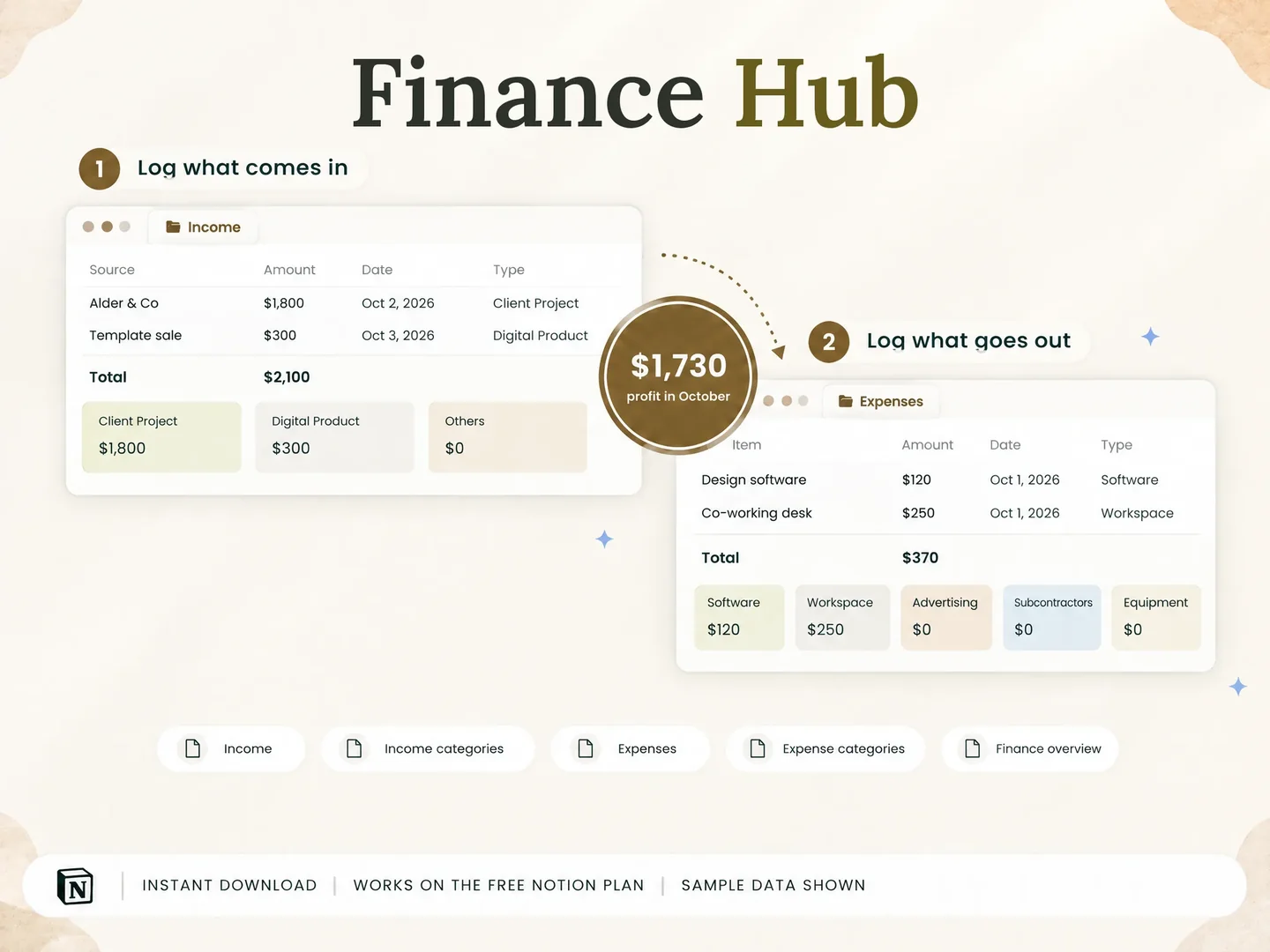
Notion Freelancer OS is a workspace template for freelance client, project and business records. Its contents include areas for Project, Productivity, Marketing, Business and Finance, with client, project, invoice, proposal, contract, timesheet and meeting records, plus income, expense and profit-versus-target tracking.
It may suit you if you want a prepared Notion structure to inspect and adapt. It still depends on your updates, and the contents list does not claim bank syncing, automatic client emails, payment processing or client-specific access controls. Keep your invoicing or payment tool as the source for issued amounts and confirmed receipts.
Start by comparing the Notion Freelancer OS contents with the fields in your current setup. If you are still deciding whether to move into Notion, review the template selection and setup guide. Use one project as a trial and keep the spreadsheet if it already answers your regular questions.
Frequently asked questions
Is a spreadsheet or Notion better for a freelance CRM?
It depends on what your client records need to show. A spreadsheet suits a compact list with clear columns and filters. Notion can suit a CRM where each client needs a page for notes and links to projects or proposals. Try your current follow-up process in both before you move records.
Can I use Google Sheets as a project tracker?
Yes. Add columns for project, status, due date, next action and owner if you need one, then use filters to focus the list. If each project needs longer notes or several related records, test whether opening a separate project page in Notion makes those details easier to maintain.
Does Notion automatically send freelance client follow-ups?
A database date or filtered view can help you see when to act, but it does not mean an email was sent. Check the specific workspace, integrations and automations you use. Notion Freelancer OS is a manually updated workspace template and does not claim to send client emails.
Can I move spreadsheet records into Notion later?
You can export database content from Notion and import many tabular records from a spreadsheet, but inspect the result before relying on it. Linked records, page content, formulas, formatting and attachments may need separate handling. Keep a copy of the original file until you confirm the destination has the fields you need.
Which option is safer for client information?
Neither choice is automatically safe for every client record. Review who can access the file or workspace, what a shared link allows, and whether client-specific access is required. Use your professional and legal obligations to decide what information belongs in either system.
Can I use a spreadsheet and Notion together?
Yes, if each tool has a clear job. For example, you might keep invoice amounts in the spreadsheet you already reconcile and use Notion for project notes. Decide which record is authoritative for each fact, and avoid manually copying values that must stay synchronized.
When should I switch from a spreadsheet to Notion?
Consider switching when the same client or project details are repeated across sheets and notes, and connected pages would reduce that lookup work. Stay with the spreadsheet when it already shows the next action, due date and current status clearly. The trigger is a real workflow problem, not the number of rows alone.
Sources
Keep reading
Freelance Admin
Notion Freelancer Template: Choose and Set Up Your Dashboard
notion freelancer template: choose useful client, project and invoice records, set up your dashboard, and build a weekly review you can maintain.
· 9 min read
Freelance Admin
Notion Freelance CRM: Track Clients, Leads and Next Steps
notion freelance crm: organize client and project records in Notion, set useful follow-up fields, and review open work without automated reminders.
· 8 min read

Freelance Admin
Freelance Invoice Tracker in Notion: Track What's Owed
freelance invoice tracker notion: set up useful invoice fields, record partial payments, spot overdue amounts, and plan clear follow-ups in Notion.
· 9 min read
