Notion Freelancer Template: Choose and Set Up Your Dashboard
notion freelancer template: choose useful client, project and invoice records, set up your dashboard, and build a weekly review you can maintain.
By Notion Freelancer OS by Cosmo Suite · Editorial policy
Published · 9 min read
A Notion freelancer template is a reusable workspace for the records behind your freelance work: clients, projects, invoices and expenses. Check whether it shows what is due, who has paid and which follow-up you need to make.
If those answers live across email, notes and a spreadsheet, moving everything to a new dashboard adds setup work. Start with one current project. Check how you would update its work and payment records before moving the rest.
Use the selection checklist to decide what you need, then try the setup process and weekly review. It also explains where our own Notion Freelancer OS fits and which jobs need a separate tool.
Key Takeaways
- Choose records and views that answer your regular admin questions.
- Try one client, one project and one invoice before migrating more records.
- Keep invoiced amounts separate from money you have received.
- Update payment status from your bank or payment tool's confirmation.
- A weekly review should end with clear next actions.
What a Notion freelancer template does
A Notion freelancer template gives you an existing set of pages and databases to adapt to your freelance business. A database is a collection of records, such as projects, with fields for details such as status and due date.
The structure can help you keep related information together. A client record holds contact details. A project record holds the work you agreed to do. An invoice record lets you check what you billed and whether payment arrived.
The useful test is whether you can answer a live question from those records. Open a current project and look for its next action. Find an invoice and check its payment status. A dashboard that cannot answer those questions needs clearer records, a clearer view or more consistent updates.
If you want a supplied structure for this back-office work, inspect the contents of a Notion template for freelance clients, projects and finances. Match each included area to something you need to maintain. Skip pages you have no reason to update.
Spreadsheet, DIY Notion or a ready-made template?
Choose the option you can keep accurate with the least unnecessary setup. Staying with a working spreadsheet is a valid decision.
| Option | What you set up | What you maintain | Best for |
|---|---|---|---|
| Existing spreadsheet | Your columns and existing process | Rows, dates and payment status | A simple register that already answers your questions |
| DIY Notion workspace | Pages, databases and useful views | Records and the structure you built | Someone who wants to design their own workflow |
| Ready-made template | A copy of the supplied structure, adapted to your work | Records and any changes you make | Someone who wants a starting structure in Notion |
Try the same admin task in each option. Can you find current projects, unpaid invoices and the next follow-up? Then consider what you must learn or rebuild to keep those answers reliable.
Before buying, inspect the included records, setup guidance and plan requirements. Check whether the finance section includes the tracking you want. Ask how to remove sample data. Ask the seller about any unclear feature you need, such as payment handling or collaboration.
Start with the records you need
Track clients, projects, invoices and expenses first. Add fields when you need them for a decision. The fields below are suggestions for evaluating or adapting a workspace. They are not a description of our template's exact database layout.
| Record | Suggested fields | Why |
|---|---|---|
| Client | Name, contact details, next follow-up | Find the right contact and the next conversation |
| Project | Client, status, due date, next action | See what work needs attention |
| Invoice | Reference, client, amount, due date, payment status | Check what was billed and what remains unpaid |
| Expense | Date, amount, category, supporting record | Review costs against their evidence |
Use statuses you understand. “Waiting” is vague unless you know what you are waiting for. “Waiting for client feedback” tells you who needs to act. Write a next action you can follow without searching old messages.
Notion's relations and rollups documentation explains how relations link database records and rollups summarize information from linked records. These are platform capabilities. A seller's template may use a different structure, so check the actual contents before assuming a particular link or total exists.
Connect records when the connection answers a useful question. Linking an invoice to a project can give you context for a payment follow-up. Avoid adding fields simply because another dashboard has them.
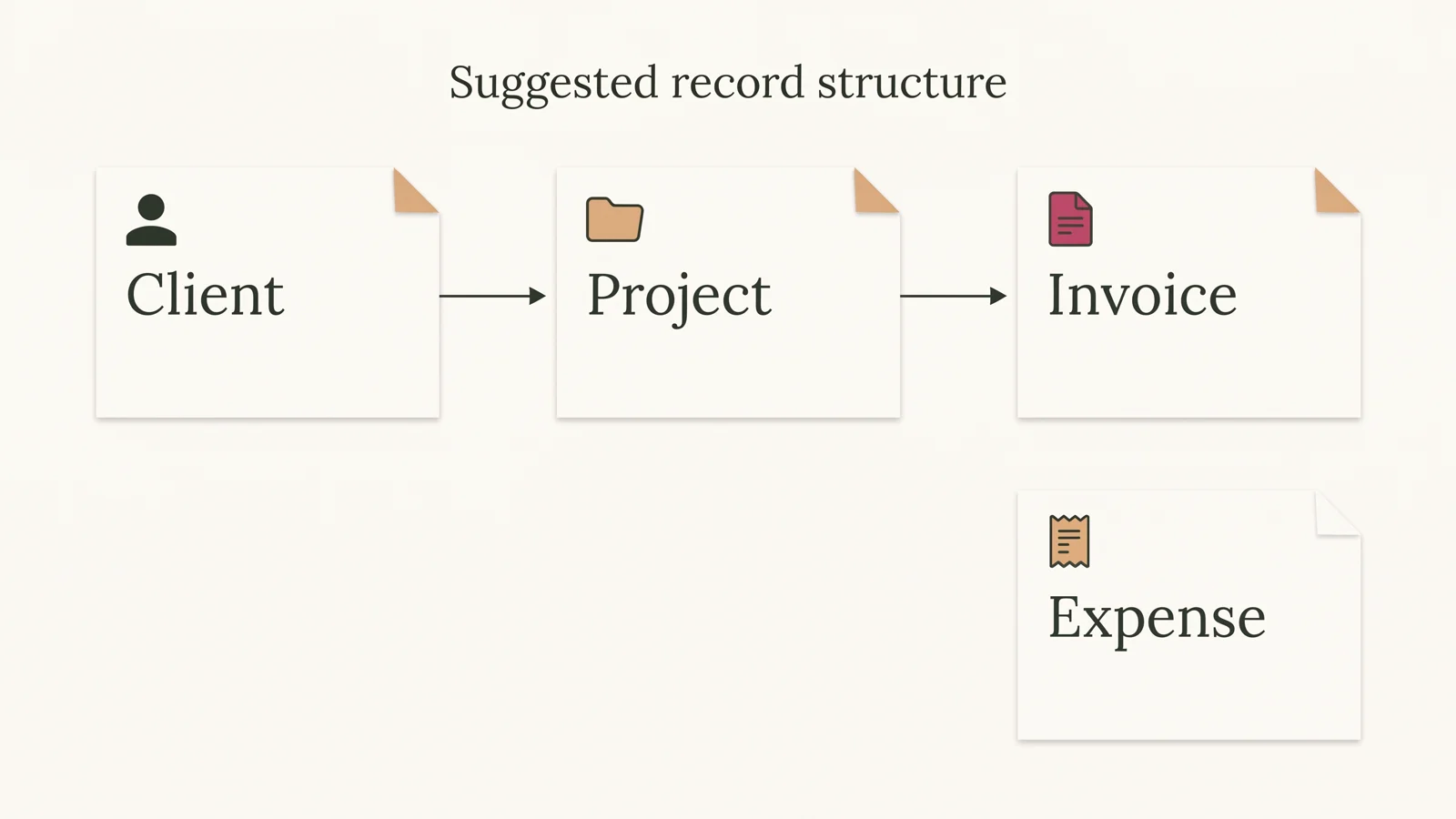
Suggested record structure. This illustration is not a screenshot of the supplied template.
Set up one current project first
Set up one current project before moving your full client history into a new workspace. You can check the structure against work you already know.
- Choose your workspace. Sign in to the Notion account where you intend to keep your business records.
- Duplicate the supplied page. Follow the seller's access instructions. Notion explains how to duplicate public pages when duplication is enabled, including choosing the destination workspace.
- Separate sample content. Read the instructions before deleting example records. Keep anything you need to understand the structure until you have checked it.
- Enter one client and project. Add the details you need to continue the work, including its next action and relevant dates.
- Enter an invoice record. Use information from your actual invoice and check that you can find its status.
- Check the views. Confirm that your project and invoice appear where you expect them.
Write down any missing field or confusing step. Resolve it before importing more information. If a record disappears from a view, check its status, date and the view's filters before creating a duplicate.
You can add the remaining active projects once the first record is useful. Old completed work can wait until you know why you need it in the new workspace.
Separate invoice totals from received money
Keep the amount you invoiced separate from the amount you have received. Sending an invoice creates a payment request; it does not confirm that money reached your account.
Use your bank or payment service to check receipt, then update the record. If a client makes a partial payment, record enough detail to see what the client still owes. Marking the whole invoice paid would hide a follow-up you still need to make.
Hypothetical example: you send invoices for $900 and $600. The invoiced total is $1,500. You receive the full $900 payment and $200 toward the second invoice. Received money is $900 + $200 = $1,100. The remaining amount is $600 − $200 = $400. If recorded expenses are $250, received money minus those expenses is $850.
That last figure is a simple cash comparison for this example. A complete accounting profit figure or tax calculation needs more information. These are illustrative amounts, not a customer result or a demonstration of our template's formulas or interface.
For expenses, record the date and amount and retain the supporting receipt or record in your chosen system. Check that you have not counted the same cost twice. A total is useful only when its underlying entries are current and complete.
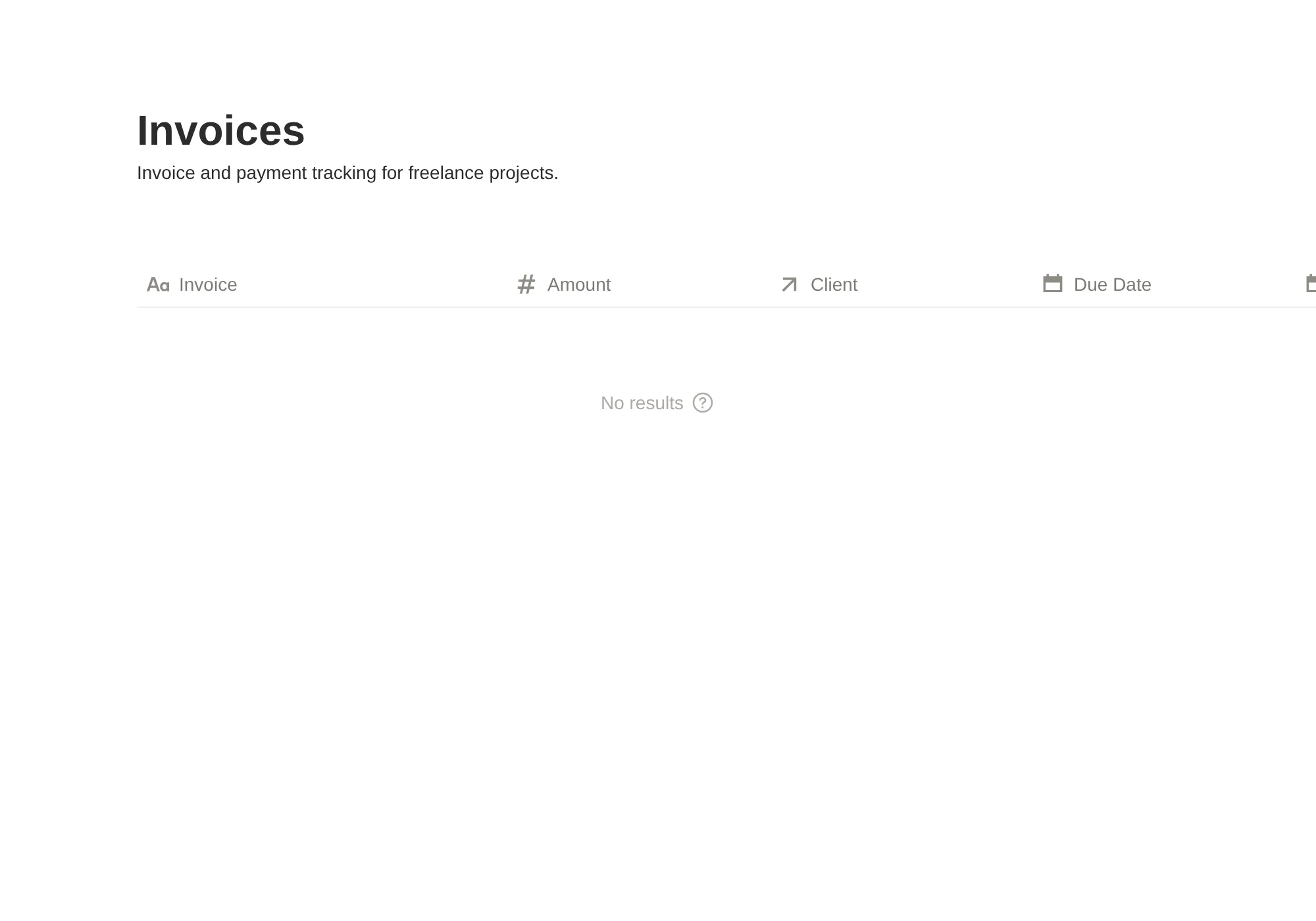
The delivered template's invoice database starts empty. This real capture shows its field headings, not the hypothetical transactions above.
Make views answer a specific question
Give each view a clear job, such as showing unpaid invoices or projects due soon. A view is a way to display records from a database; it does not create the missing information those records need.
Notion documents views, filters, sorts and groups. Filters display records that meet chosen property conditions. Sorts change their order. You can use these capabilities to create a proposed review view if your database contains the relevant fields.
For an unpaid-invoice view, first check how the payment-status field works. For a due-date review, check that the records have dates. A blank date will not tell you which invoice is overdue. Confirm the meaning of each displayed record before relying on a total or list.
Keep a way to inspect the wider record list. When something looks missing, you can compare the review view with the underlying entries. Check whether a filter hid the record or whether you still need to add it.
Use a weekly review to choose the next action
Review your work and money records together, then decide what to do next. Weekly is a suggested cadence you can adapt to your workload; no fixed review duration applies to every business.
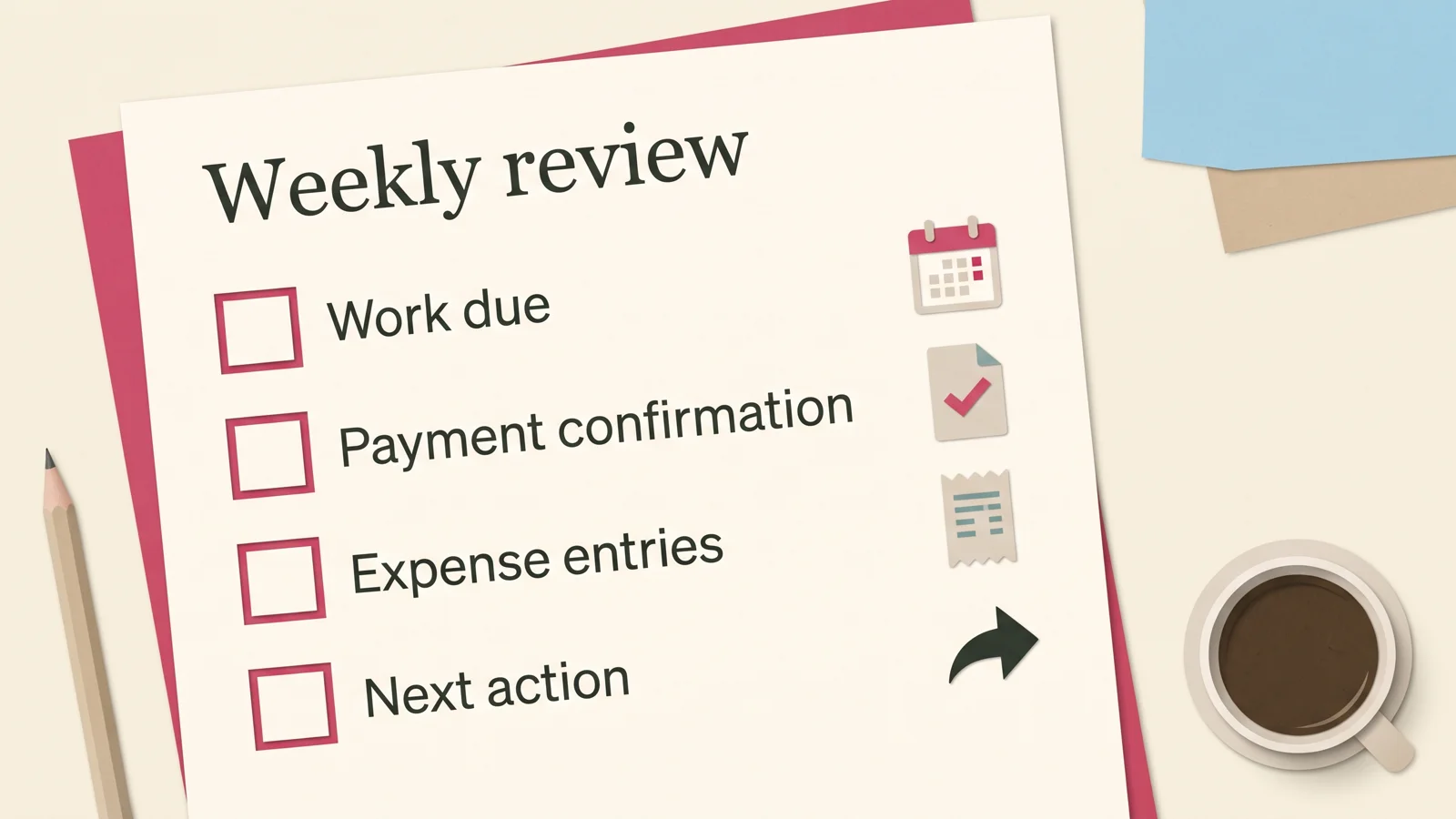
Begin with active projects. Check due dates, work waiting on someone else and the next action you can take. Then review unpaid invoices against confirmed payments. Add missing expense entries while their supporting records are easy to find.
Hypothetical example: a lead asks for a website quote. Record the request and choose “send scope questions” as the next action. Until the lead agrees to proceed, keep the proposed work separate from confirmed projects and received income. This example describes a possible process, not a supplied product screen.
End the review with actions you can carry out: send a follow-up, confirm a payment, request feedback or schedule work. If you keep rediscovering the same missing detail, change the record or your update habit.
A ready-made workspace for reviewing freelance work and money can supply a starting structure. Keep the invoice statuses current when you review it; extra views cannot fill in missing updates.
Why Trust This Article
We are the Cosmo Suite team that publishes Notion Freelancer OS. This guide discusses our own product. Platform explanations use official Notion documentation checked on 13 October 2026. The real screenshots come from the Notion preview linked in the delivered download guide, checked on the same date; its starter databases contain no transactions. Product claims stay within the supplied contents list. We have not claimed hands-on testing, customer outcomes or an independent ranking.
The selection checklist and sample calculations are editorial guidance. Verify the features you need before buying or changing your process. Our editorial policy explains our publishing approach, and you can contact our team about a correction or product question.
Where Notion Freelancer OS Fits
Notion Freelancer OS fits a solo freelancer who wants an existing structure for back-office records in Notion. Its client, project and invoice tracking can provide a starting point for the admin process described here.
The delivered template's Finance page describes a simple income and expense ledger. Its empty starter table shows fields for Transaction, Amount, Category and Client. Those fields let you see what you need to enter before relying on a summary. The invoice page similarly starts empty, with an invoice reference, amount, client and due date visible in the capture.
Compare these records with the admin you need to do. A template with no entered transactions cannot tell you who has paid or what you earned. Add accurate records and review them against your payment and expense evidence. The screenshots show the supplied structure; they do not demonstrate populated totals or tested formulas.
The supplied contents list says the product works with Notion's free plan. It is a standalone back-office template. Payment processing, bank syncing, automatic invoice sending and client access are not established product capabilities. Keep payment collection and formal accounting in suitable tools, and maintain the records you choose to track here.
Review Notion Freelancer OS for your freelance admin records before choosing. Compare its included scope with the small project trial described above. Check each needed Notion feature in the template before you rely on it.
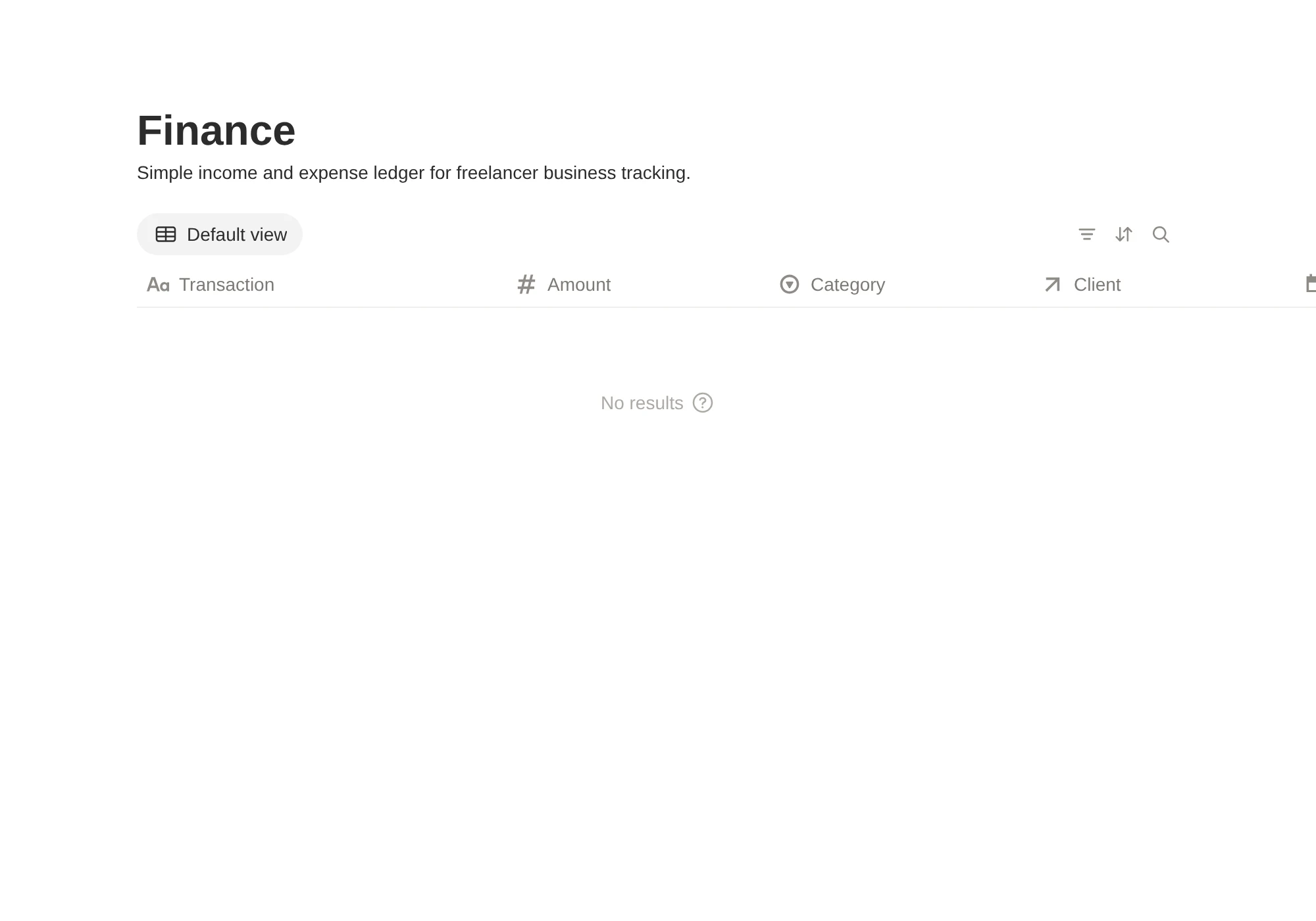
Real capture of the delivered template's Finance page. No sample income or expenses have been added.
Frequently asked questions
Who is a Notion freelancer template best for?
It suits a solo freelancer who wants to keep client, project and money records in Notion and will update them regularly. Check that the included records match your work. If your spreadsheet already shows deadlines, unpaid invoices and next actions clearly, you may have little reason to move.
Do I need a paid Notion plan?
No paid Notion plan is required for Notion Freelancer OS according to its supplied contents list. Other templates can have different requirements. The template purchase and a Notion subscription are separate costs. Check the seller's requirements and Notion's current pricing before adding team members or relying on extra features.
Can I use the template alongside my invoicing software?
Yes. Use your invoicing or payment tool to issue invoices and confirm payments, then update the relevant Notion record. Decide which tool holds the authoritative amount and payment status so conflicting entries are easy to resolve. The supplied Notion Freelancer OS contents do not establish automatic payment syncing or invoice sending.
When is my dashboard ready to use?
It is ready for a small trial when you can find one current project's next action, due date and invoice status without guessing. Check that sample records are removed or clearly separated. Complete a review with that project before adding the rest of your business. There is no fixed setup time that applies to every freelancer.
How is a ready-made template different from a spreadsheet?
A ready-made template supplies an existing Notion structure for you to duplicate and adapt. A spreadsheet can also track clients, deadlines and money well. The useful difference is whether the structure makes your regular questions easier to answer. Compare that benefit with the work of learning and maintaining a new setup.
Can I export my freelance records?
Yes. Notion documents export options, including CSV for databases. Available formats and access depend on what you export and your permissions. Check an exported file before relying on it, especially if you need linked records or attachments. An export is not a promise that the complete workspace can be restored with one import.
Sources
Keep reading
Freelance Admin
Freelance Expense Tracking for Tax Time: A Simple System
Freelance expense tracking for tax time works best as a steady record habit. Track dates, amounts and source documents, then review gaps each month.
· 8 min read

Freelance Admin
Freelance Proposal and Contract Tracking in Notion
Freelance proposal and contract tracking in Notion: link each offer, decision, signed agreement and next project step without losing the source document.
· 8 min read

Freelance Admin
Freelance Lead Follow-Up Tracker: Keep the Next Step Visible
Freelance lead follow-up tracker: note each enquiry’s source and request, the last contact, and the next action and date in Notion or a spreadsheet.
· 8 min read
