Invoice Tracking Spreadsheet: 8 Columns and Where It Breaks
Invoice tracking spreadsheet: the five columns every sheet needs, the three most people forget, a copyable layout and the point where a sheet stops helping.
By Notion Freelancer OS by Cosmo Suite · Editorial policy
Published · 8 min read
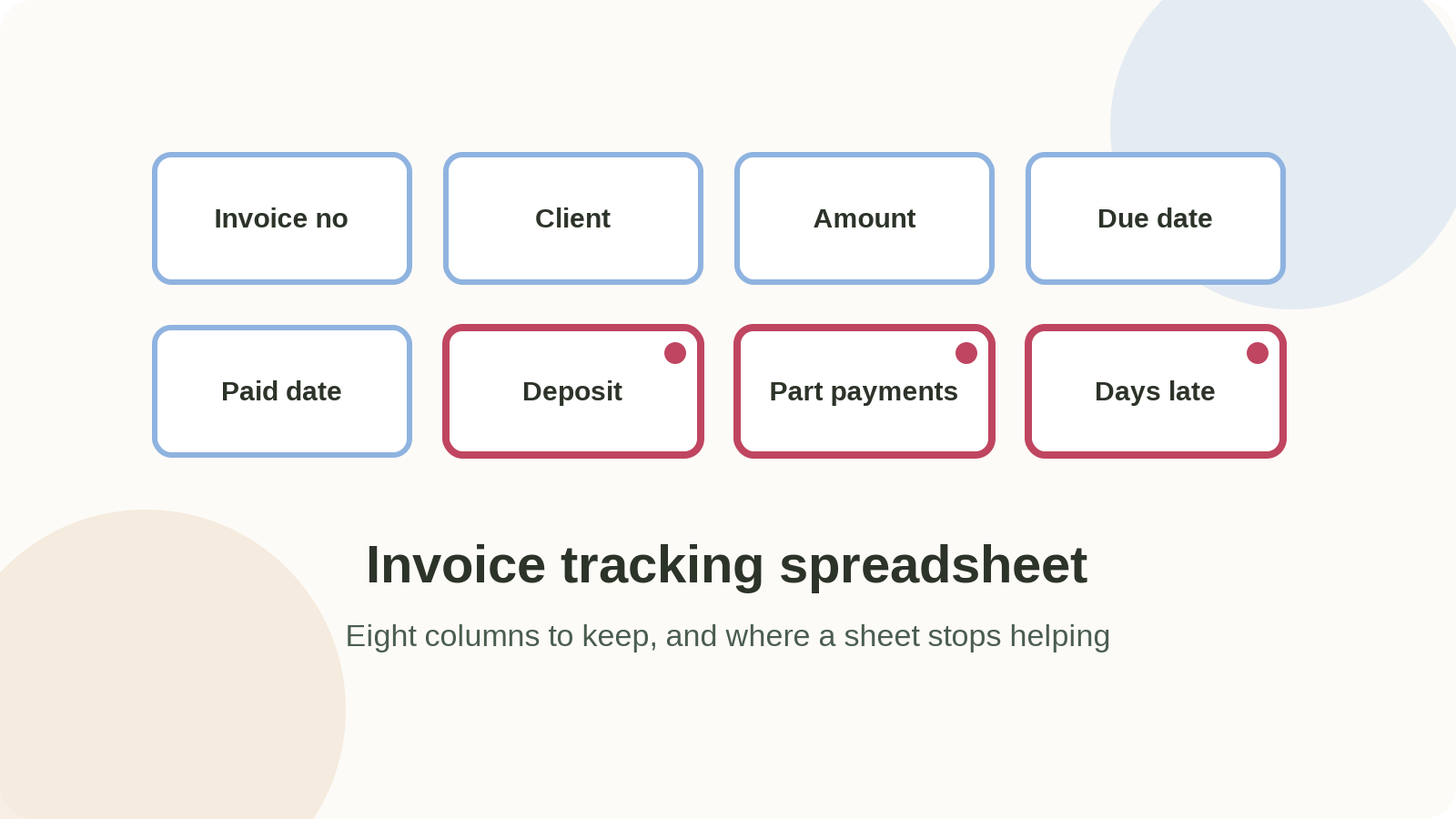
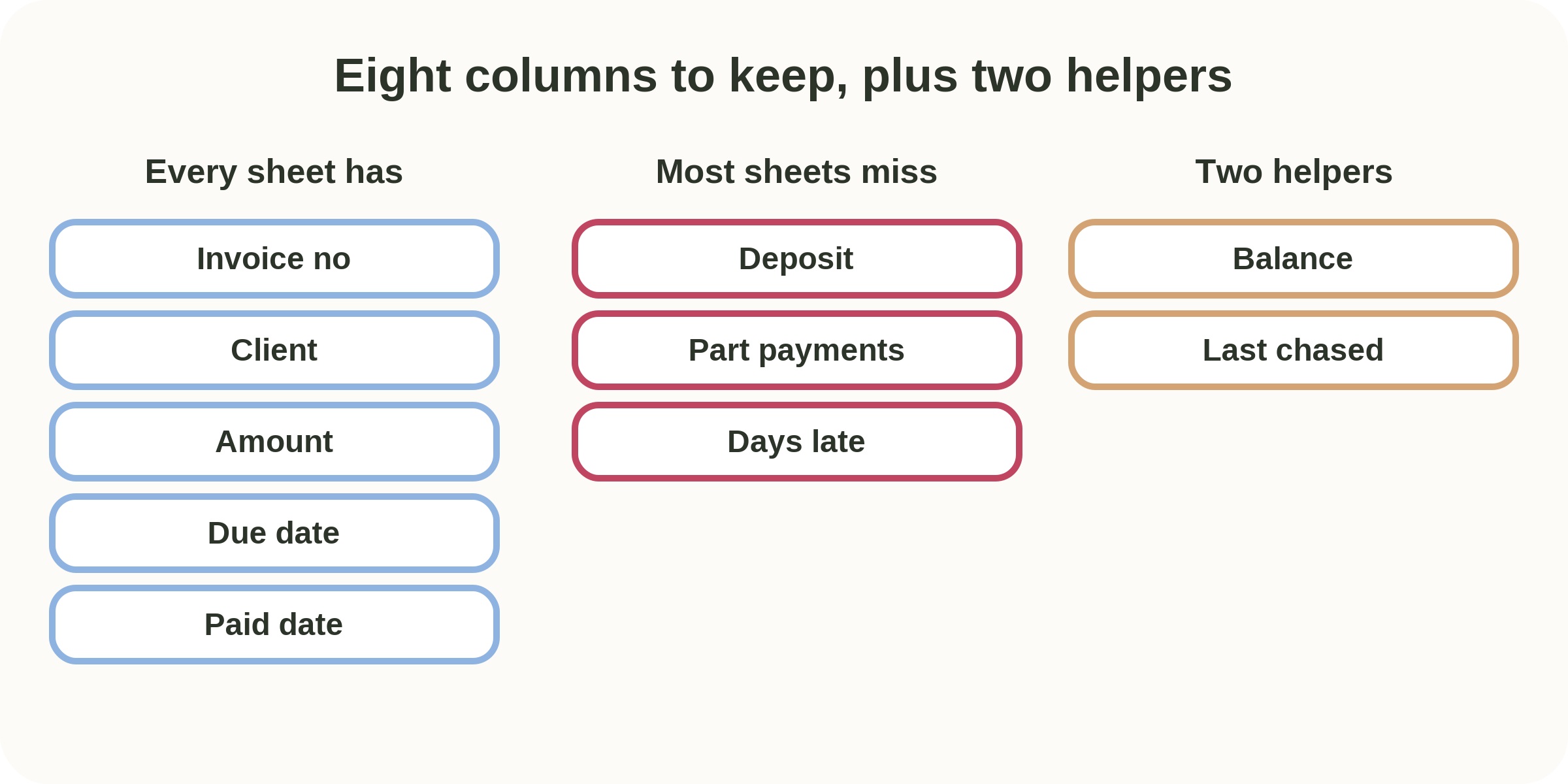
An invoice tracking spreadsheet is one row per invoice, with enough columns to answer three questions: who owes me, how much, and how late is it. Five columns answer the first two. Three more answer the third, and they are the ones most sheets leave out.
This guide gives you all eight, a layout you can copy into Google Sheets or Excel, and the formulas for the two columns that work out their own values. It also says where a sheet stops helping, because there is a point where it does. If you would rather keep invoices beside clients and projects, Notion Freelancer OS has invoice records in a Notion workspace that you can look at once you know what your sheet has to do.
Key Takeaways
- Five columns do the basic job: number, client, amount, due date and paid date.
- Three more catch the money that goes missing: deposit, part payments and days late.
- Two columns calculate themselves: balance and days late.
- A sheet shows you who is late. It does not message anyone and it does not know the work behind the invoice.
- The sheet stops helping once the follow-up lives in another file, however short the list is.
The five columns every invoice sheet has
An invoice tracking spreadsheet is a table where each row is one invoice you have sent. The five columns below are the ones every template on the first page of Google has, and for good reason. Without any one of them the sheet cannot answer a basic question.
| Column | What goes in it | The question it answers |
|---|---|---|
| Invoice number | The same number printed on the invoice | Which one are we talking about? |
| Client | The person or business that owes you | Who do I write to? |
| Amount | The total on the invoice | How much was billed? |
| Due date | The date the invoice says payment is due | When does it become late? |
| Paid date | The day the last of the money arrived | Is it closed? |
Keep the invoice number exactly as it appears on the document, so "about invoice 1042" finds one row in one search.
Keep the due date as a real date, not as text such as "net 30". A real date can be sorted and compared with today. Text cannot. If your invoice says "net 30", work out the date once and type it in. A sent date column beside it is optional, because the due date is the one the sheet needs.
Leave the paid date empty until the invoice is fully paid. An empty paid date is how the sheet tells open invoices from closed ones, so a sort or filter on that column shows what is still open. A partial payment therefore never goes here.
The three columns most sheets leave out
The five columns are enough on the day you send the invoice. Two weeks later a client has paid a deposit, sent half the balance and gone quiet. Three more columns cover that gap.
Deposit taken
A deposit is money you received before or at the start of the work. Give it its own column. Fold it into the amount and you lose the record of what was billed. Leave it out and the balance is wrong from day one.
Part payments
A part payment is money that arrives after the invoice is sent but before it is settled. Record the total received so far in this column and update it each time something arrives. If you need the date and size of each one, that is a sign you need a second list, which is covered in the freelance invoice tracker guide for Notion. For a plain sheet, one running total is enough.
Days late
This column tells you where to spend Monday morning. It counts the days since the due date for any open invoice and shows zero for the rest. Nobody types into it.
Add two helper columns to make these three work:
| Column | What goes in it |
|---|---|
| Balance | Amount minus deposit minus part payments |
| Last chased | The date you last asked about this invoice |
The balance is what you are actually owed. The last chased date stops you writing twice in one day, or forgetting you have not written for three weeks.
A layout you can copy
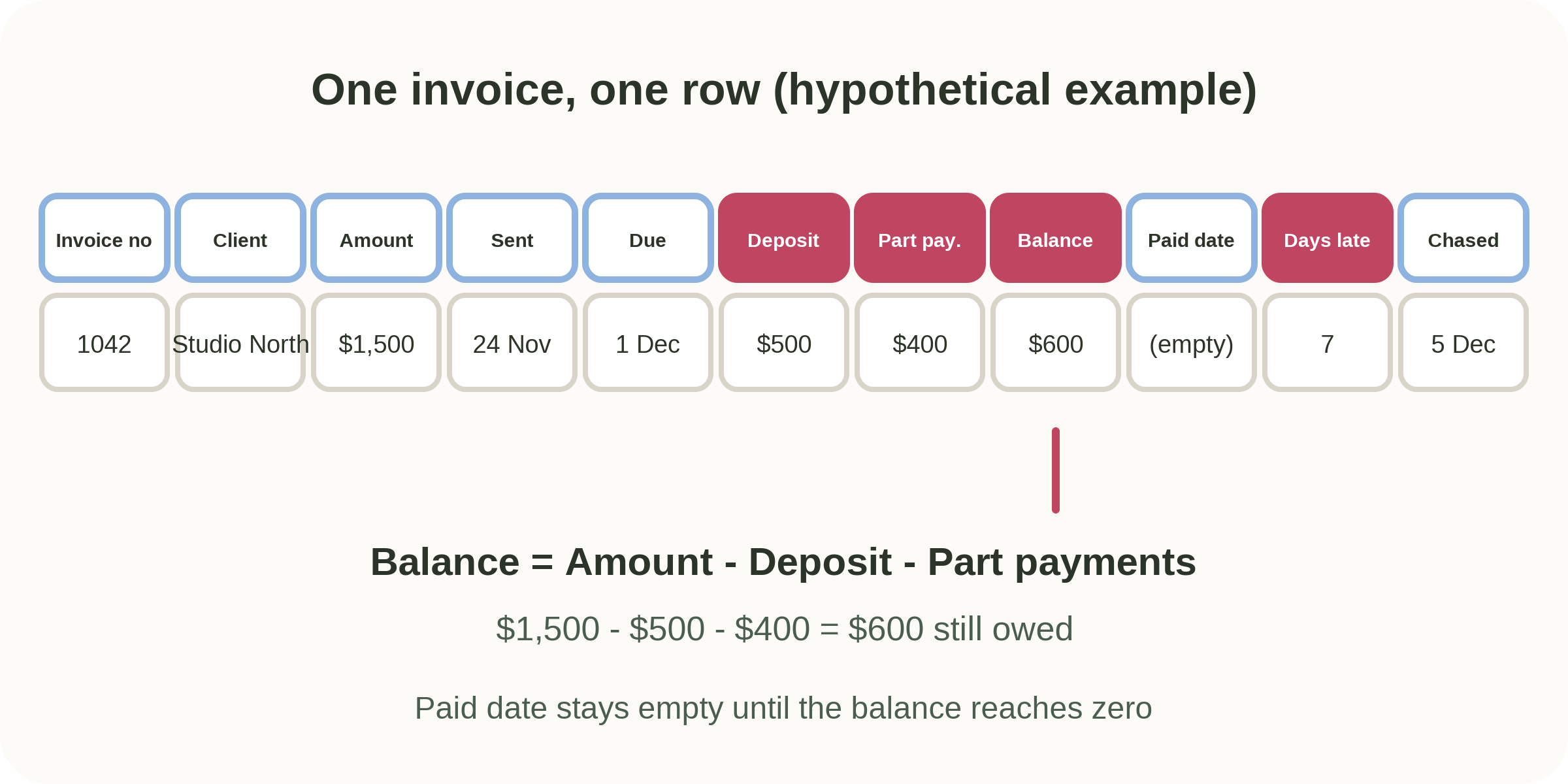
Here is the full header row, with the example row filled in. The figures are hypothetical and exist only to show the shape.
| A | B | C | D | E | F | G | H | I | J | K |
|---|---|---|---|---|---|---|---|---|---|---|
| Invoice no | Client | Amount | Sent | Due | Deposit | Part payments | Balance | Paid date | Days late | Last chased |
| 1042 | Studio North | 1500 | 17 Nov 2026 | 1 Dec 2026 | 500 | 400 | 600 | 7 | 5 Dec 2026 |
In this hypothetical row the invoice is for $1,500. The client paid a $500 deposit and a later $400 part payment, which leaves $600. The due date was 1 December 2026, so on 8 December the invoice is 7 days late. The paid date stays empty because the balance is not zero.
Two columns hold formulas. In row 2, the balance is:
=C2-F2-G2
And days late, which returns zero when the invoice is paid or has no balance, and otherwise counts the days since the due date:
=IF(OR(I2<>"",H2<=0),0,MAX(0,TODAY()-E2))
Google's help page for TODAY says it returns the current date with no time component, and that it recalculates whenever the sheet updates. That is why days late changes without anyone touching it. It also means the number is only fresh when you open the sheet. Nothing in it moves while the file sits closed.
Copy both formulas down for each new row, and keep the input columns free of formulas.
Three small settings that keep the sheet honest
Three settings keep the entries clean.
A drop-down for status. If you add a status column with values such as Sent, Part paid and Paid, use data validation so nobody types "Part-paid" in one row and "partly paid" in another. Google's guide to creating a drop-down list covers how to build one from a range or from typed values.
A color rule for late rows. Highlight any row where days late is above zero. Google's page on conditional formatting rules explains that rules run in the order listed and the first true rule sets the format, so put the paid rule above the late rule. A color shows you where to look and leaves every value alone.
A filter on the paid date. Create a filter that hides rows with a paid date. That leaves only open invoices on screen, sorted by days late. The Monday check then takes a minute.
The Monday check, step by step
A sheet earns its keep when you open it on a schedule.
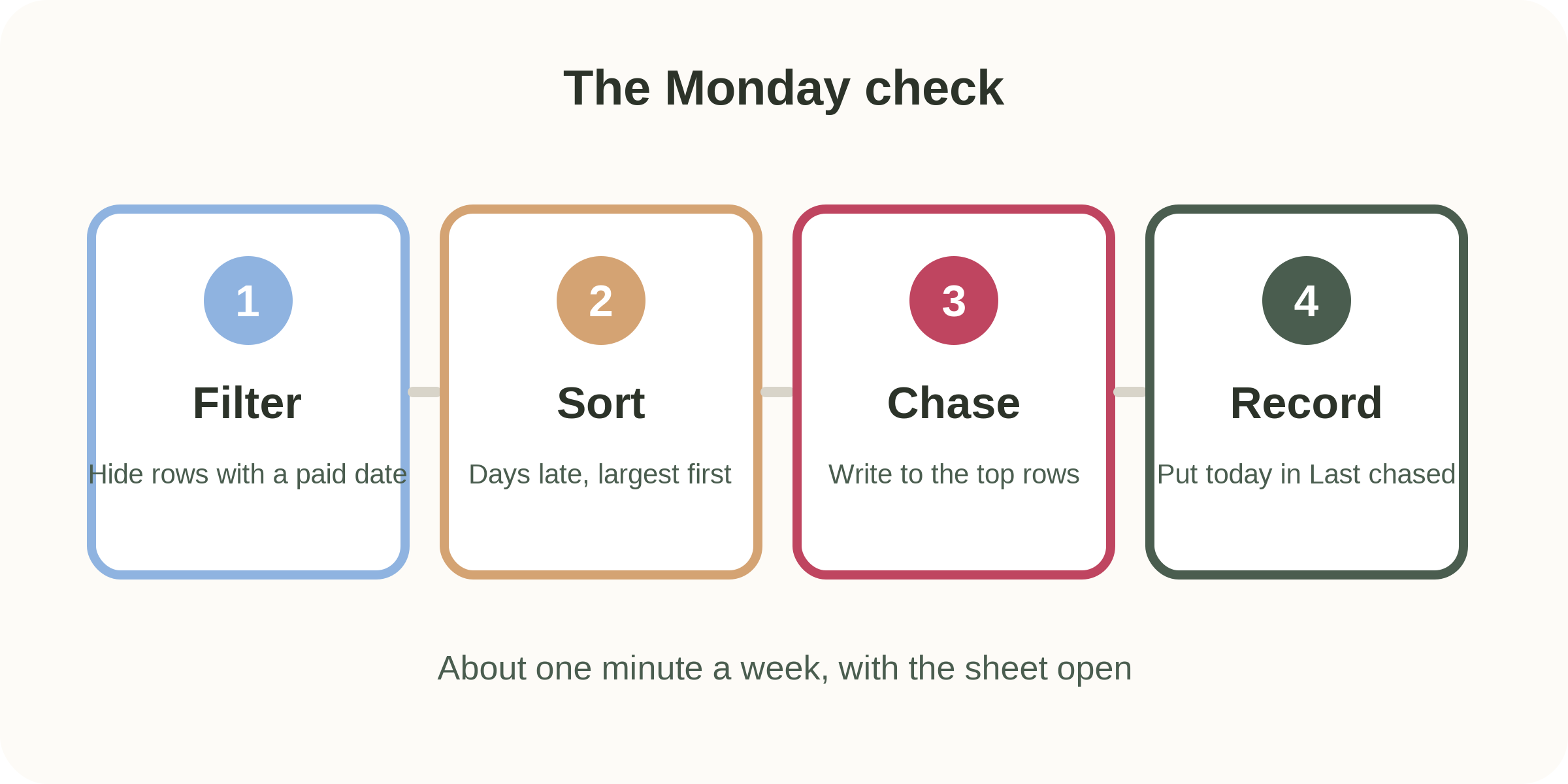
- Filter out any row with a paid date, so only open invoices are left.
- Sort by days late, largest first.
- Look at the top rows. For each one, check your bank or payment service before you write, because the money may already be in. If it has arrived, record it and move on.
- For each one still open, write to the client, then put today's date in the last chased column.
Step three matters most. A sheet counts days from a date. It has no idea whether a transfer cleared on Sunday. Always confirm the money against your own bank record first, then update the row. Chasing a client for an invoice they already paid looks careless.
If you want wording for the message itself, the guide to tracking unpaid invoices covers the check-then-follow-up routine in more detail, and this post stays on the sheet.
Where a spreadsheet is the right tool
Be fair to the sheet. It is free or close to it, you already know it, and it shows every invoice on one screen. If you send a few invoices a month to clients who mostly pay on time, eight columns and a Monday check are enough.
A sheet is also easy to move. You can export it, copy it to a new year, or hand it to an accountant as it stands. Keep the paid rows rather than deleting them. The IRS page on how long to keep records says to keep records for 3 years in the default case, and longer in some situations it lists, so check which one applies to you. That is general information, not tax advice.
If you are weighing a sheet against a database tool for the whole job, the spreadsheet or Notion comparison for freelancers sets out that choice from the start. This post assumes you have chosen the sheet and want it to work.
Where a sheet stops helping
A sheet fails when the invoice list has to answer questions the sheet cannot hold, however short the list is. Two come up first.
It has no way to remind you. A colored row only works if you open the sheet. If you are away for a week, the red rows wait. A calendar event helps, but then the reminder lives in a second tool and its date can drift from the sheet.
It has no link to the work. A row says Studio North owes $600. It does not say which project the invoice covered, what was agreed, or when you last spoke. That context lives in an inbox, a notes file and a project list. To decide how firm to be with a late client, you open all three.
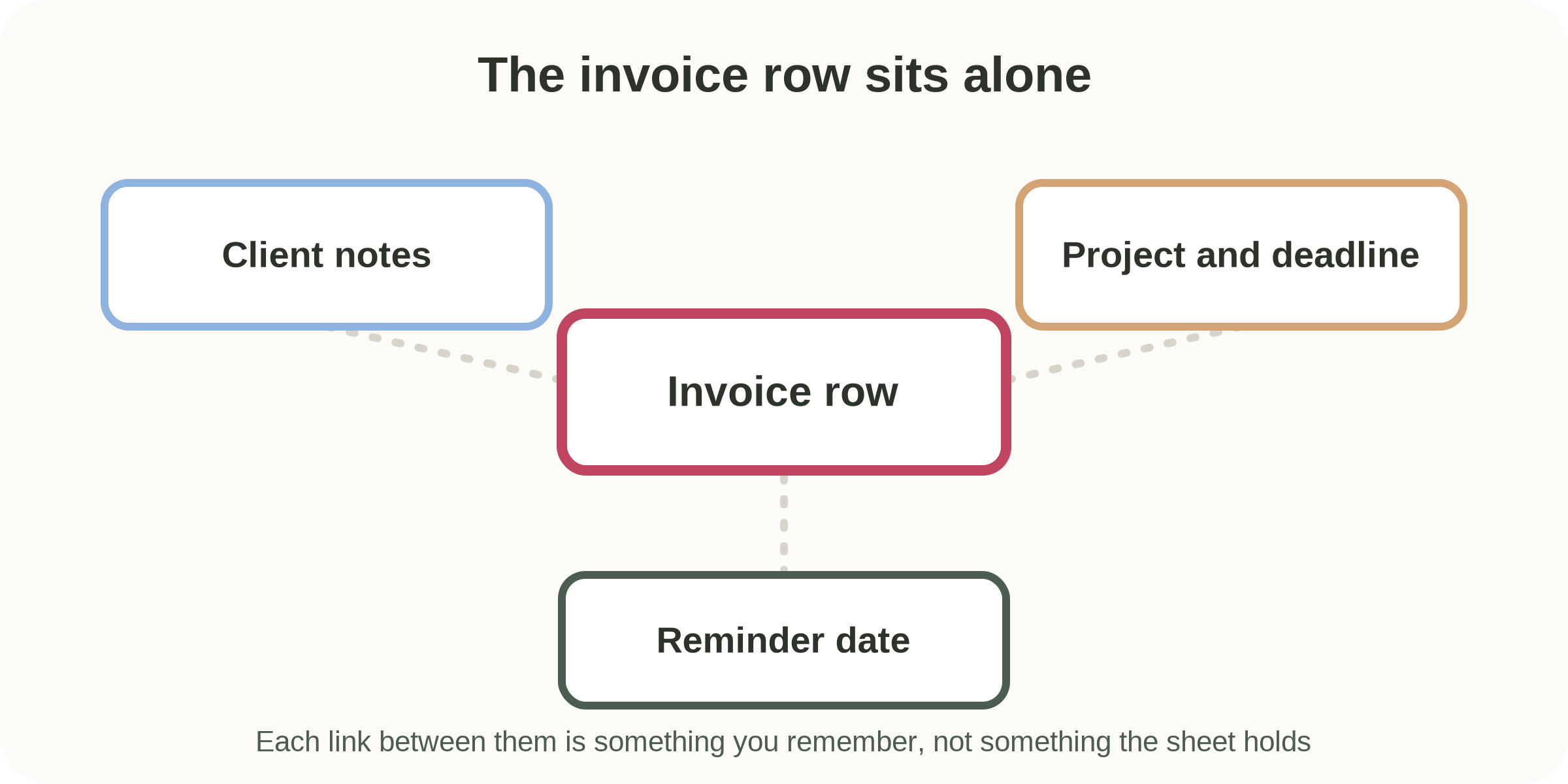
A sheet with six open invoices has both.
Where invoice tracking sits in Notion Freelancer OS
Notion Freelancer OS is a Notion workspace, not a spreadsheet. Its finance area has invoice records, income and expense tracking, and monthly and yearly profit against a target. Its client, project, proposal, contract, timesheet and meeting records sit in the same workspace, so an invoice can sit next to the client and project it belongs to. Notion's guide to database properties explains the property types such records are built from, such as dates, numbers and select lists.
It is a standalone workspace. It does not send invoices, take payments or share pages with clients, so you still issue invoices and receive money through the tools you use now. What changes is where the record sits. If you want to see how that looks, see what Notion Freelancer OS includes, and keep your sheet until you are ready to move.
A short version to keep
Eight columns, two formulas and one Monday check will keep a small invoice list in order. When "who is late and why" keeps sending you to another file, move the follow-up out of the sheet.
Why trust this article
The help pages named above were read on 24 November 2026 and are linked where they are used. The IRS line was read the same day.
Nothing here is measured. There is no average days to payment and no test group. The invoice in the layout section is hypothetical and exists only to show the shape of a row. This is not tax or legal advice.
About the author: Notion Freelancer OS by Cosmo Suite publishes Notion templates for solo freelancers. If a link here has moved, contact us through the site and we will correct it.
Frequently asked questions
What columns should an invoice tracking spreadsheet have?
Five do the basic job: invoice number, client, amount, due date and paid date. Three more stop money slipping through: a deposit column, a part payments column and a days late column. Add a balance column that subtracts the money received from the amount, and a last chased column so you know when you last asked.
How do you track invoices in a spreadsheet?
Give each invoice one row. Fill in the number, client, amount and due date when you send it. When money arrives, record it in the deposit or part payments column and let a balance formula do the subtraction. Fill in the paid date only when the balance reaches zero. Then sort by days late once a week.
How do you calculate days late in Google Sheets?
Subtract the due date from TODAY and return zero for invoices that are paid or not yet due. An IF formula that checks the paid date and the balance, then subtracts the due date from TODAY, does it. TODAY recalculates whenever the sheet updates, so the number is fresh each time you open the file.
When does a spreadsheet stop being enough for invoice tracking?
A sheet starts to struggle when the follow-up lives somewhere else. It will not message anyone, and it cannot hold the client notes and project details next to the row. If you keep opening a second file to answer who is late and why, the invoice list has outgrown the sheet.
Can a spreadsheet send invoice reminders?
Not on its own. A sheet can highlight a late row and show the days late, but you still write and send the reminder yourself. Colors and formulas tell you who to chase. They do not contact the client.
How long should you keep invoice records?
The IRS says to keep records for 3 years in the default case, and longer in a few situations it lists. Check the current page for your own case, and keep the invoice rows rather than deleting paid ones. This is general information, not tax advice.
Sources
Keep reading
Invoices and payments
Invoice Reminder Email: Four Send Points and What to Write at Each
Invoice reminder email: four dated messages at minus 3, the due date, plus 7 and plus 14, each with its own subject line, one question and a calm tone.
· 9 min read
Invoices and payments
Chasing Invoices as a Freelancer: The Order That Works
Chasing invoices as a freelancer: the order that works, from the first written reminder to the fourth-week decision, with the wording for each step.
· 10 min read
