Freelance Client Tracker: Organize Projects, Dates, and Follow-Ups
Freelance client tracker: organize active work, due dates and the next client action in one view, with a practical setup for Notion or a spreadsheet.
By Notion Freelancer OS by Cosmo Suite · Editorial policy
Published · 8 min read
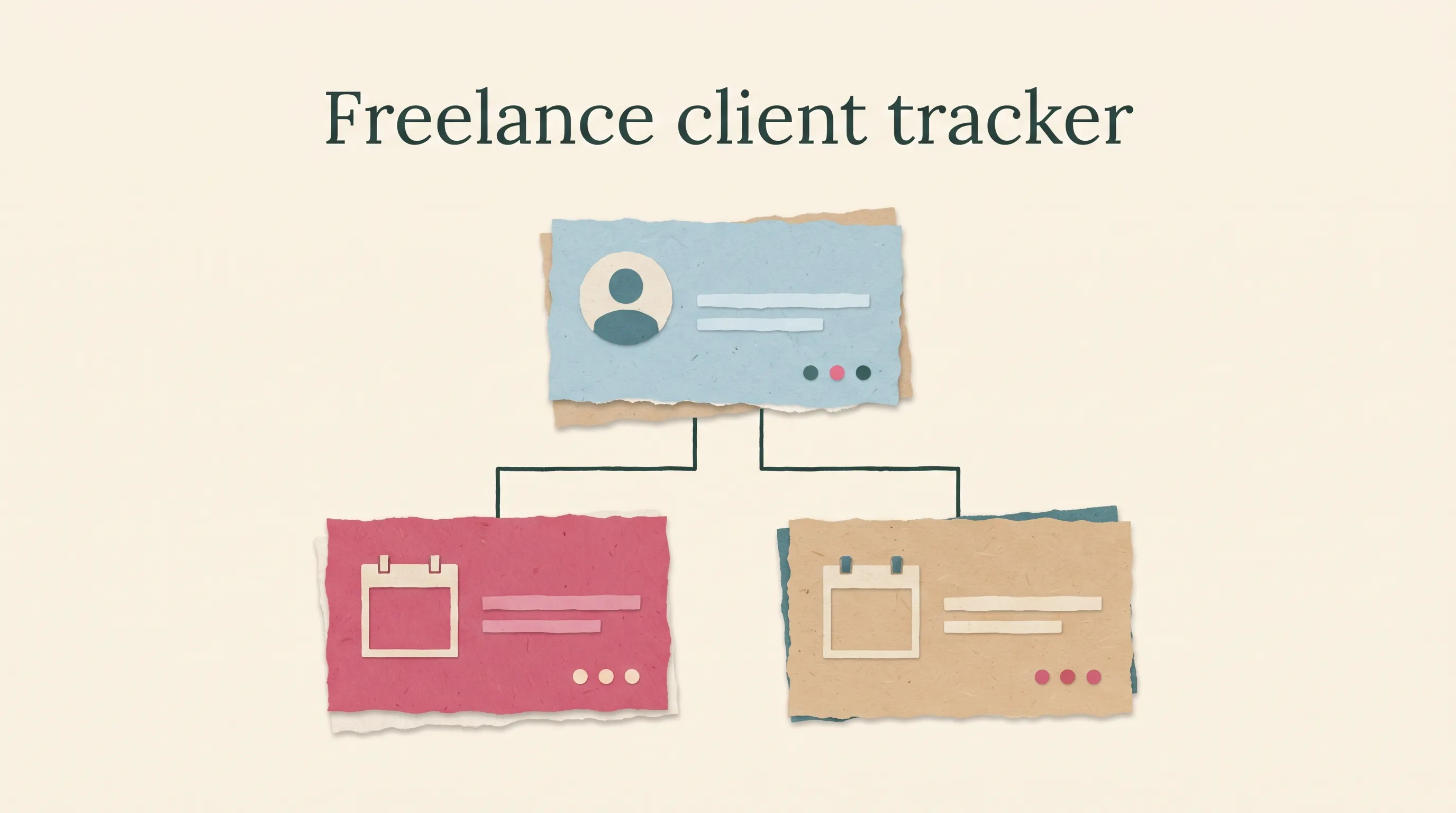
A freelance client tracker earns its place when it shows more than a name. Record the active work, its due date, current stage and who acts next. A client list on its own will not tell you whether a draft is with the client, a date moved, or a reply is due from you.
You can build a useful tracker in a spreadsheet or Notion. Keep the client record for stable details, then give each project its own stage and dates. Add a dated next action so your weekly review starts with the work that needs attention.
Key Takeaways
- Track active clients separately from unqualified leads.
- Keep project scope, delivery dates and status on project records.
- Make the next action specific and record who needs to act.
- Use views to surface work by date or status, then update the source record.
- Confirm invoices and payments in the systems that issue and receive them.
What should a freelance client tracker show?
A freelance client tracker is a working list of active relationships, agreed work and the next action for each project. It should answer four questions quickly: who is the client, what work is active, what stage is it in, and what action is next? A simple table can handle one-person workflows. If several projects belong to the same client, separate client and project records make dates and status easier to follow.
| Record | Fields to start with | Use it to answer | Best for |
|---|---|---|---|
| Client | Name, contact method, relationship status | Who is this work for? | Contact details used across projects |
| Project | Client, scope, stage, delivery date | What did we agree to deliver? | A distinct piece of work |
| Next action | Action, owner, date, waiting on | What should happen next? | Follow-up or a decision due |
| Invoice reference | Invoice ID, issue date, due date, payment status | What needs a billing check? | A link back to the accounting or invoice source |
Use these fields as a starting point and trim them to fit. If your projects are short and each client has one job, a single table may be enough. Split records when a project has its own deadline or review cycle, or when one client returns with new work. The broader Notion freelancer template for clients, projects and finance tracking shows how these areas can fit together.
If you prefer a ready-made workspace, Notion Freelancer OS groups client, project and finance records. Check its contents against the work you need to track.
Separate client details from project delivery
Keep stable contact details on the client record and changing delivery details on each project. A client record holds contact details and relationship context that can apply to more than one job. A project record holds the scope, stage and delivery dates for one piece of agreed work. If you put every deadline, note and invoice on one client row, a returning client can leave you with a crowded record and unclear project history.
For example, a hypothetical designer's client can have one client page and two project rows: a brand refresh due in June and a later website update. The client record keeps the preferred contact channel. Each project row holds its scope, milestone dates, current status and links to working files. The names and dates are illustrative.

In Notion, a relation can connect pages from two databases, while a rollup can display selected information from related records. A spreadsheet can use the client name or a stable client ID in each project row. The important part is that you can move from the client to the current work without copying the same details into several places. See Notion's relations and rollups guide for how its linked records work.
Choose fields you will keep up to date
Start with a short client table and a project table. The client table might hold name, email, preferred contact channel, relationship status and a link to the project list. The project table might hold project name, agreed scope, current stage, delivery date, next action, next-action date and a link to the current brief or files.
Use status names that describe real work. For a project, examples could be “Planned,” “In progress,” “Waiting for client,” “Revision,” and “Delivered.” For a client, “Active,” “Past,” and “Prospect” may be enough. Keep prospects separate from active work if you want a pipeline view. The site's Notion freelance CRM guide focuses on leads and prospect follow-ups; this tracker is for keeping agreed work moving.
Avoid fields that sound useful but have no owner or update trigger. A “last contacted” date is only valuable if you change it after a real conversation. A “priority” value goes stale if nothing tells you when to reassess it. If you keep adding fields, ask which decision each one helps you make. Remove the field if there is no clear answer.
Notion database properties can hold details such as text, numbers, dates, select values and status. Its database views can show the same records as a table, board, calendar or other layouts, with filters and sorts based on properties. A view changes how you look at the records; it does not update the client or send a message for you. The official database properties reference and views and filters guide explain those tools.
Tie follow-ups to project milestones
Use the next-action field to state a task someone can complete, and pair it with a date and an owner. “Follow up” is vague. “Send the first logo options to Maya” or “Ask Maya to choose one direction” makes the handoff clear. If the client needs to act, record what you are waiting for and when you plan to check in.
For a small design project, your sequence might look like this:
- Confirm the brief and the files you need.
- Record the first draft date and who reviews it.
- After sending the draft, change the stage to “Waiting for client” and set a review date.
- When notes arrive, move the project to “Revision” and write the next step.
- After approval, record delivery and link the invoice reference.
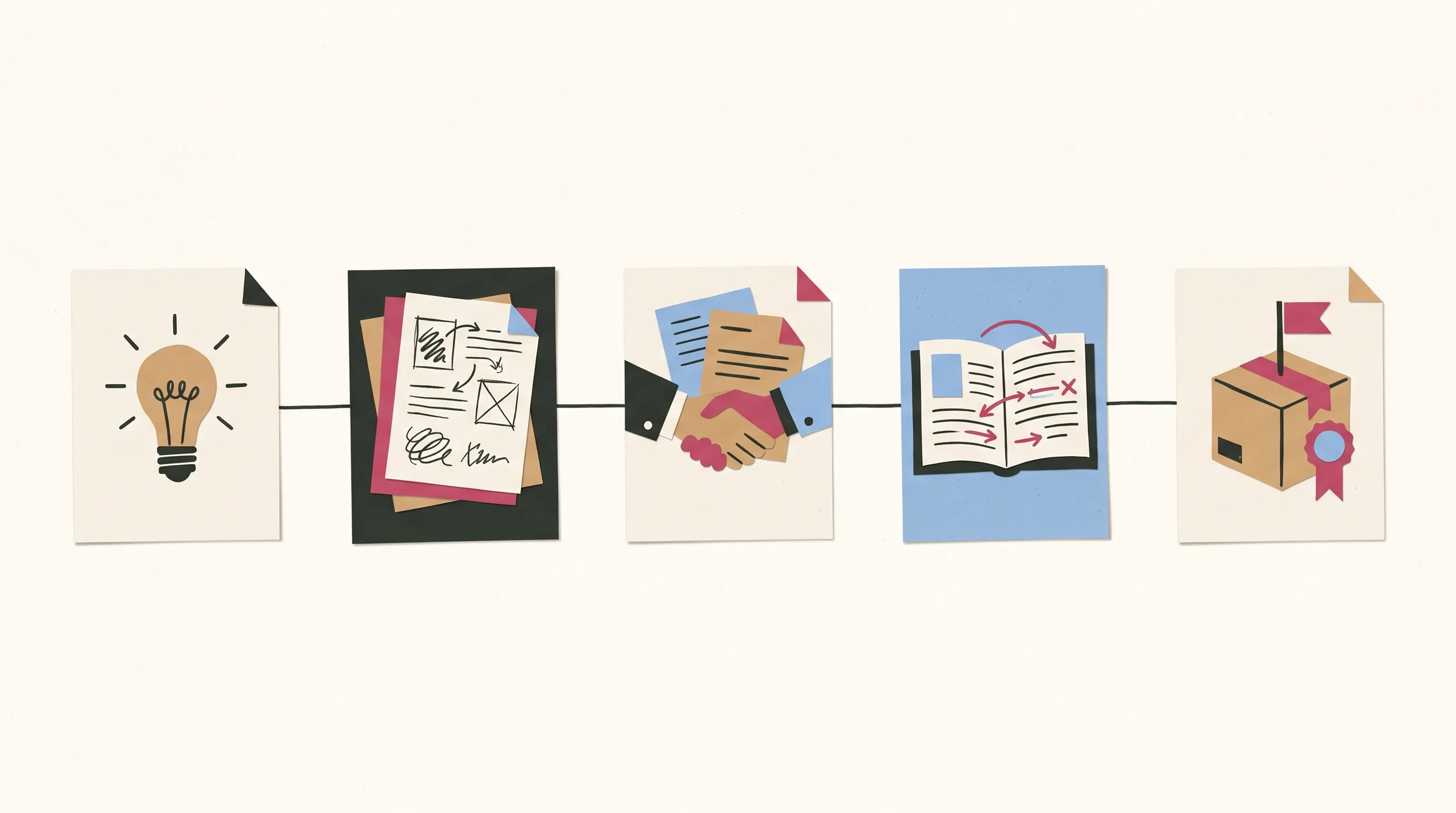
The status and date should change when the work changes. If a review date passes with no response, the record should make it easy to see whether you owe the client a reminder or need to adjust the delivery plan. Do not treat a filtered view as an automatic notification. A filtered view is not itself a reminder. Notion supports reminders on database Date properties, so set one when useful and check your notification settings in the official reminders guide.
For a workspace that keeps project records alongside invoices and meeting notes, see what Notion Freelancer OS includes.
Review active clients once a week
A weekly review can catch work that is late, waiting on a client, or due soon. Choose a day and scan the project records in a repeatable order. You do not need to add a new tracking tool if your current list already answers the questions.

- Check overdue dates. Confirm whether the work is complete, the date changed, or the next action needs to be rescheduled.
- Check “Waiting for client.” Review what you requested and when it makes sense to follow up.
- Check the coming week. Confirm the next milestone, owner and files needed for each active project.
- Check the invoice source. Reconcile payment status against the issued invoice or payment provider. For the payment-side routine, see how to track unpaid invoices as a freelancer.
- Close finished work. Mark the project delivered and keep the record if you need its history for later work.
Use the review to plan your work alongside your contract, accounting process and calendar. The tracker records the dates you enter. It cannot confirm that a client opened a file or that money reached your account.
Test the tracker with one real project
Before copying old records into a new system, try the setup with one active project. Use a hypothetical design client, Maya, with an agreed home-page refresh and one review round. Add a client row with a contact method, then a project row with scope, delivery date, stage and the link to the brief.
At kickoff, set the next action to “Send first homepage draft,” choose a date from the agreed schedule, and name yourself as the owner. When you send the file, change the action to “Request review notes,” set the date you expect to check back, and mark the project as waiting for the client. If Maya sends notes, move the project into revision and record the next deliverable.
All names, dates and workflow details in this example are hypothetical. The point is to see whether each step has a place to live. If you cannot tell who should act, add an owner. If a date belongs to a project milestone, keep it on the project record. If a task is just a reminder to yourself, make that clear in the action text.
After the trial, check three things: can you find the next action without searching old messages, can you distinguish projects for the same client, and can you keep the records current without duplicate entry? If yes, move over the records you still use. If not, remove fields or change the structure before migrating more data.
Why Trust This Article
Notion Freelancer OS by Cosmo Suite publishes this guide and sells a Notion template for freelance administration. The platform details above were checked against Notion's official help pages on 29 October 2026. The sample client and project are hypothetical, not a case study or a claim about customer results. Read About Cosmo Suite, our editorial policy and contact the publisher with a correction or question. Check the tools and agreements you rely on before changing your records.
Where Notion Freelancer OS Fits In
Notion Freelancer OS is a Notion template for client, project, invoice, proposal, contract, timesheet and meeting records. Its five hubs cover Project, Productivity, Marketing, Business and Finance. The finance area includes income, expenses and profit-versus-target tracking. Its planners are dated for 2026 and 2027.
The template organizes records you enter. It does not send client emails, process payments, confirm an invoice was paid, or enforce separate client access. If you want the records and views already arranged in one workspace, see the Notion Freelancer OS dashboard. If a manual Notion setup is enough, use the field list above and build only the views you will maintain. You can also review what is in Notion Freelancer OS against your own workflow before choosing.
Frequently asked questions
What should a freelance client tracker include?
Start with the client name, relationship status, active project, delivery date, current stage and next action with a date. Add links to proposals, meeting notes or invoices when they help you act. Keep payment confirmation in the system that records the actual transaction.
Should clients and projects go in separate records?
Usually, yes, when one client can have more than one project or the work has its own dates and stages. A client record holds stable contact details. A project record holds scope, milestones and delivery status. You can connect them in Notion or use a client column in a spreadsheet.
Can I make a freelance client tracker in Notion?
Yes. A Notion database can hold client or project rows, and its views can filter and sort properties such as status and date. You choose what to record and maintain it yourself. You can set a reminder on a database Date property, but the view itself does not send a client email or confirm that a client paid. Check your notification settings and keep payment confirmation in the system that received the money.
How do I track client follow-ups?
Write the next action in plain language, assign a date, and record who is expected to act. For example, use 'send revised homepage draft' when you owe the client a file, or 'ask for review notes' when the next move belongs to them. Review dates and statuses on a routine that fits your workload.
Can a client tracker manage invoices too?
It can link a project or client to an invoice reference, but treat the tracker as an organizing view. Check the invoice and payment in the tool that issued the invoice or received the money. For a separate payment-status workflow, see this guide to tracking unpaid freelance invoices.
Is a spreadsheet or Notion better for freelance clients?
A spreadsheet is often enough when you need a short, flat list and one person updates it. Notion can help when client, project, meeting and invoice pages need links or different database views. Choose the smallest setup you will keep current, then test it with one active project.
How often should I update the tracker?
Choose a routine that matches your work. A weekly review can surface dated follow-ups, open proposals and active projects. Update a record after important client activity too, so the next review does not depend on reconstructing the conversation from memory. A Notion date reminder needs its own setting and a test notification.
Sources
Keep reading
Freelance Admin
Notion Freelancer Template: Choose and Set Up Your Dashboard
notion freelancer template: choose useful client, project and invoice records, set up your dashboard, and build a weekly review you can maintain.
· 9 min read

Freelance Admin
Notion Freelance CRM: Track Clients, Leads and Next Steps
notion freelance crm: organize client and project records in Notion, set useful follow-up fields, and review open work without automated reminders.
· 8 min read

Freelance Admin
Freelance Invoice Tracker in Notion: Track What's Owed
freelance invoice tracker notion: set up useful invoice fields, record partial payments, spot overdue amounts, and plan clear follow-ups in Notion.
· 9 min read
