How to Track Unpaid Invoices as a Freelancer
How to track unpaid invoices as a freelancer: build a simple tracker, review due dates, record follow-ups, and verify payments before changing a status.
By Notion Freelancer OS by Cosmo Suite · Editorial policy
Published · 8 min read
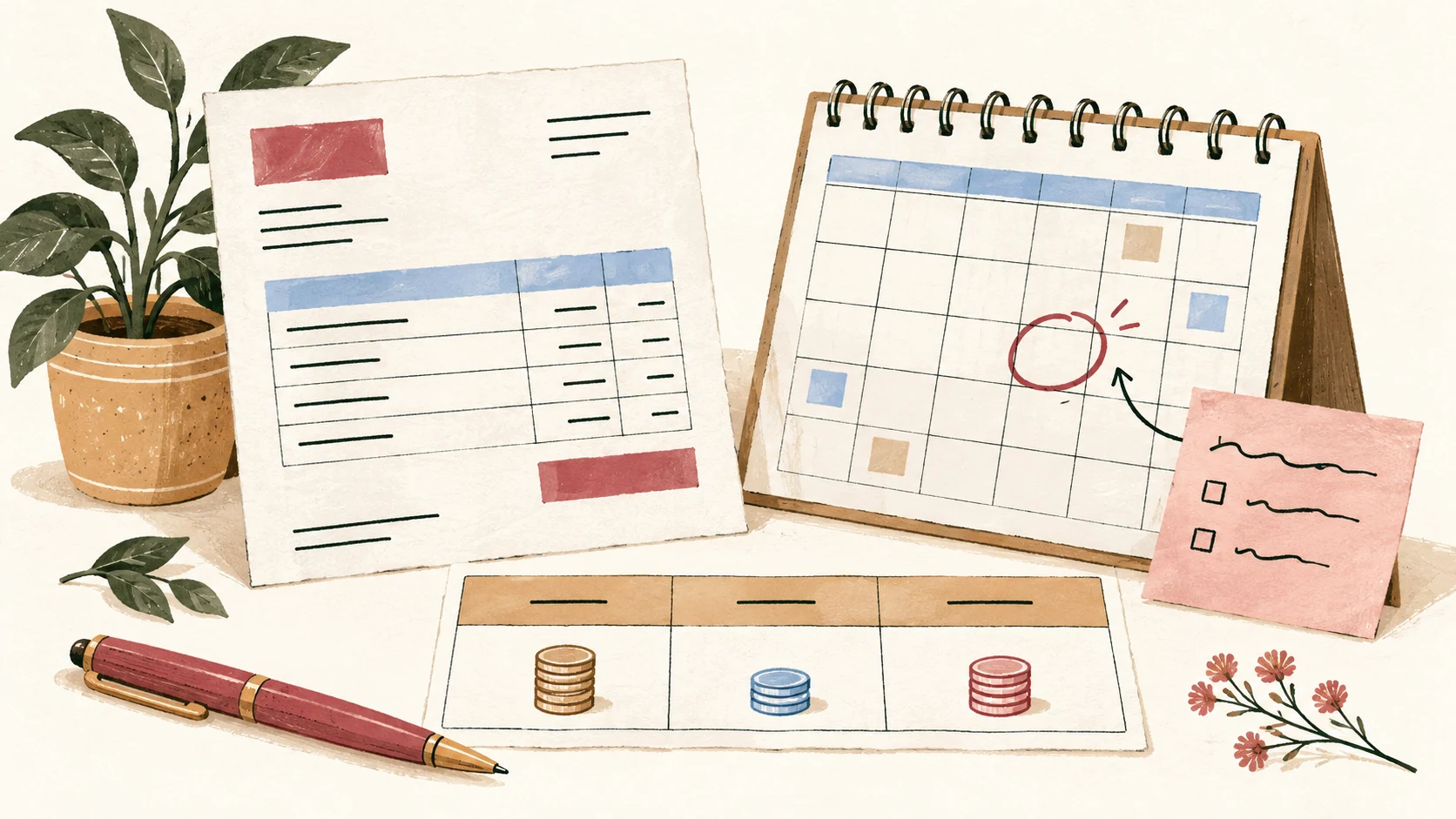
A unpaid invoice tracker is a list of invoice records that shows what is due, what needs review, and what you will check next. Keep one record for each invoice, with its due date, original amount, amount received, status, and next action together.
Use the tracker to organize follow-up. Use your invoicing or payment service to send the invoice and confirm that money arrived. A date passing in a database does not prove a client has not paid. Check your bank or payment provider before you send a reminder, then update the record.
If you manage client, project, and finance records in Notion, Notion Freelancer OS has a starting workspace for those areas. This guide shows how to build or adapt a tracking routine around the records you already use.
Key Takeaways
- Make one record for each invoice.
- Keep the original amount separate from the amount received.
- Review due dates in an unpaid view, then verify payment outside the tracker.
- Record each follow-up and its next action.
- A Notion reminder alerts you; it does not email your client.
Start with the question your tracker should answer
An unpaid invoice tracker should answer: who owes what, when is it due, and what will you do next? You can keep the records in a spreadsheet or a Notion database. The right choice depends on how many details you need to connect and how reliably you will update them.
| Setup | Useful when | Watch for |
|---|---|---|
| Spreadsheet | You need a short list, a few columns, and familiar sorting | Notes and project context may sit in separate files |
| Notion database | You want invoice records beside related clients or projects and need several views | More properties can create upkeep; start with the fields you use |
| Invoicing software | You need to issue invoices, accept payments, or keep payment records there | Check which tracking fields and reports your service supports |
Notion databases store pages with properties, such as dates, numbers, status, text, and links. The same database can appear in different layouts, and Notion's guide to database views and filters explains how views show subsets of those records. That can help you keep one invoice list while switching between all invoices, unpaid invoices, and follow-ups due this week.
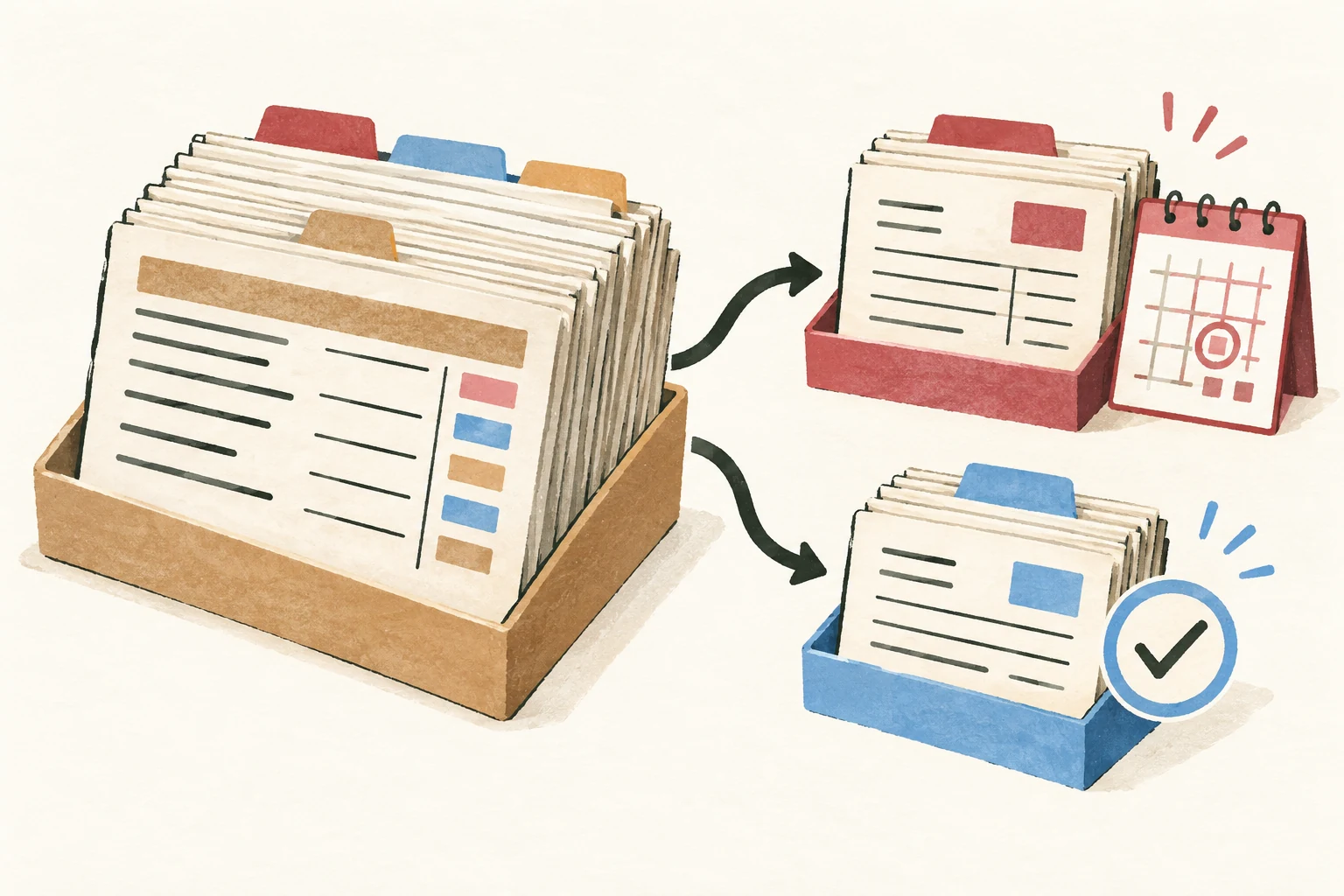
A tracker can help you spot an open balance and choose what to do next. It cannot make a client pay or replace your normal invoicing process.
Add the minimum fields you will maintain
Start with the information you need to identify the invoice, verify its status, and follow up. An invoice status is the current stage of that record, such as Sent, Partially paid, or Paid. Add fields only when they answer a real question in your weekly review.
| Field | What to record | Why it matters |
|---|---|---|
| Invoice reference | The number or label used by your invoicing service | Lets you find the original invoice |
| Client | The person or business named on it | Shows who the follow-up concerns |
| Project | A project name or link, if useful | Connects payment to completed work |
| Issue date | When you sent or recorded the invoice | Preserves the timeline |
| Due date | The date stated on the invoice | Helps sort upcoming and late items |
| Original amount | The amount due on the invoice | Keeps the source amount intact |
| Received to date | Payments you have confirmed | Shows whether a balance remains |
| Status | Draft, Sent, Partially paid, Paid, or On hold | Makes the workflow visible |
| Last follow-up | Date and channel of your last message | Prevents repeated or forgotten contact |
| Next action | The next check or message and its date | Turns an open item into a clear task |
Keep an invoice file or source link if you need to check the exact terms. The database should help you find the source record, not become the only record of what the client agreed to pay.
If you want a deeper look at invoice fields and partial-payment records, see this guide to a freelance invoice tracker in Notion.
Notion supports database properties such as dates, numbers, select options, formulas, and URLs. Its database properties guide explains how these property types work. These field suggestions describe a tracking setup, not a claim that Notion Freelancer OS includes every field above.
Create views for unpaid invoices and next actions
Use a filtered view to bring open invoices into one place. In Notion, make a table view called “Unpaid” and filter out invoices whose status is Paid or Cancelled. Sort by due date from oldest to newest. If you keep a next-action date, create another view for actions due this week.
Keep a separate “All invoices” view so a filtered list does not hide the full history. A simple status set can be Draft, Sent, Partially paid, Paid, and On hold. Define each status once. For example, Sent means the invoice has been issued; Partially paid means some money arrived and an amount remains; Paid means you checked and recorded the full payment.
An overdue label can be useful as a prompt to review, but treat it as a signal rather than a final payment status. A due date may have passed while a transfer is pending, or you may not yet have recorded a payment. Verify the account where funds arrive before you mark an invoice late or contact the client.
If you use a formula to flag a date, test it with a paid invoice, an unpaid invoice, a partial payment, and a blank due date. Keep the status and source check visible so that an automated label does not replace your judgment.
Review each invoice before you follow up
When an invoice appears in your follow-up view, use this short sequence:
- Open the invoice record and confirm the client, reference, amount, and due date.
- Check your bank or payment provider for the amount received. Match the payment to the invoice using the reference or other details you normally rely on.
- Update the received-to-date amount and status only after you confirm the payment.
- If a balance remains and the due date has passed, review the invoice terms and your previous messages.
- Send a clear, professional message through your usual email or invoicing tool.
- Record the date, channel, and outcome of the follow-up. Set the next action based on the terms and your own process.
This routine keeps two records straight: the tracker shows what you plan to do, while the payment service confirms what happened. Do not use a sent reminder as proof of delivery or a bank transfer notification as proof that the invoice is fully settled until the amount matches.
For a more complete client and project workspace, you can review Notion Freelancer OS. The product includes invoice and finance records, but the tracker does not issue invoices or collect client payments.
Keep partial payments visible
Store the original invoice amount separately from the amount received. Calculate the open balance as original amount minus confirmed payments. If you receive more than one payment, use a separate payment log when the dates and amounts matter later.
For example, suppose a hypothetical invoice is $900 and you confirm a $300 payment. The record still shows the original $900 amount, $300 received, and $600 outstanding. If you later confirm another $200, received-to-date becomes $500 and the remaining balance is $400. The example is illustrative; use your own invoice currency and figures.
For one payment per invoice, a received-to-date field may be enough. For several instalments, a payment log can hold one entry per receipt: invoice reference, date, amount, and source. Link each payment entry to the invoice if you want to see the history and the total together. Notion relations connect database records, while rollups can summarize related values. Check the result against the original payment records before relying on a calculated balance.
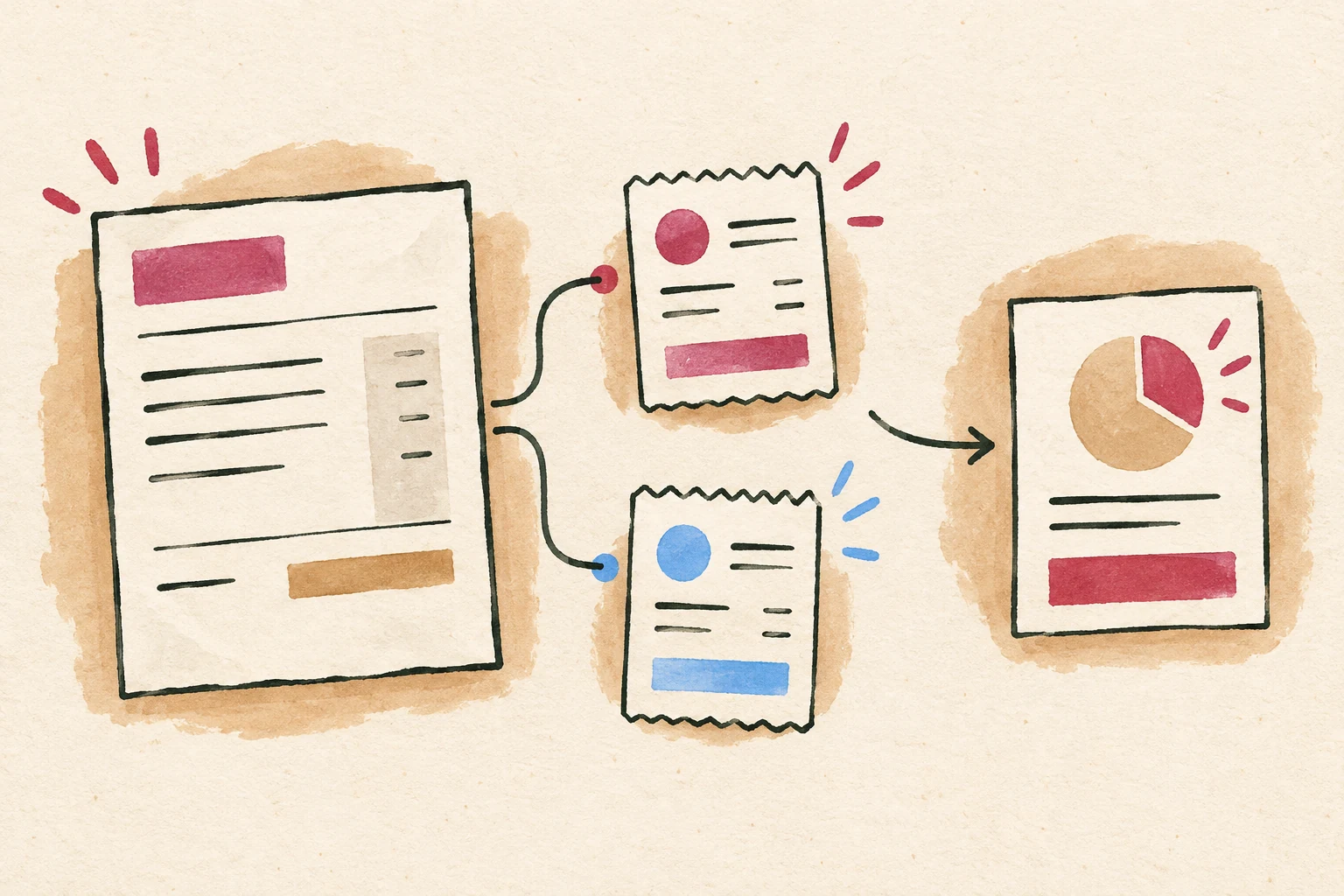
Do not replace the original amount with the remaining balance. Keeping both values makes it easier to understand what was invoiced and what is still due.
Set reminders for yourself, not for the client
A due-date reminder can bring an invoice back to your attention. Notion's reminders guide describes date reminders in the workspace. They are for you; they do not send a payment request to the client.
You can set a reminder on a review date, such as the due date or the date you plan to check an invoice. Choose a timing that matches your agreement and normal communication. Do not assume every client or contract uses the same payment window.
When you contact a client, send the message from your email or invoicing service. Keep the wording brief: identify the invoice, state the due date and open amount you verified, and ask whether they need the invoice resent or have a payment update. Avoid including private payment details in a shared workspace or an unsecured note.
After you send the message, record what you sent and when. If the client replies with a question or a revised date, note the next action. A tracker is most useful when it reflects your latest known information, not when it accumulates reminders that no longer apply.
Use a weekly review to keep the list accurate
Once a week, open the unpaid view and check each invoice against your payment source. Update paid items, confirm partial payments, and choose a next action for anything still open. Then look at upcoming due dates so you can prepare rather than reconstruct the week from old messages.

Keep the review narrow. You do not need a complicated dashboard to answer three questions: what changed, what needs a follow-up, and what should wait? If the list is current, those answers should be visible from the invoice record and its next-action date.
If an invoice is disputed, paused, or tied to a change in scope, use an On hold status and record the issue that needs a decision. Keep the client conversation and signed terms in their proper source systems. The tracker should point you to them, not replace them.
Know when a tracker is no longer enough
A spreadsheet or database is a record-keeping aid. Use your invoicing or accounting service for functions it supports, such as issuing invoices, processing a payment, or preserving transaction records. Get qualified advice for tax, accounting, or legal questions; this guide covers tracking and follow-up habits only.
If you need several payment dates, audit history, recurring invoices, or reports that reconcile with your accounts, confirm those needs with the software you use. A manual tracker can still be useful as a review list, but avoid entering the same information in multiple places unless you have a clear process to keep them aligned.
Notion Freelancer OS is our product, and this page is an editorial guide from Cosmo Suite. See the workspace contents if you want a Notion starting point for clients, projects, invoices, and finance records. The choice is yours: a spreadsheet is enough for some freelancers, while others prefer database views alongside their project information.
Sources and useful questions
For Notion setup details, see its database properties documentation, views and filters guide, reminders guide, and formula reference. Product behavior can change, so check the current documentation when configuring a workspace.
Before you close your next weekly review, ask: which invoice changed since the last check? Which balance did you verify? What is the next action, and when will you take it?
Frequently asked questions
How do freelancers keep track of unpaid invoices?
Keep one record per invoice with its reference, client, original amount, issue date, due date, amount received and next action. Review an unpaid view on a regular schedule, check payment with your bank or payment provider, and update the record only after you confirm it.
What should an unpaid invoice tracker include?
Start with an invoice reference, client, issue date, due date, original amount, received-to-date amount, status and next action. Add a project or source-document link if you use it. Keep only fields you can maintain.
How do I know if an invoice is overdue?
Compare the due date on the invoice with today's date, then check your payment source before contacting the client. A tracker date can flag a review, but it cannot confirm whether a transfer is pending or has arrived.
Can Notion send an invoice reminder to my client?
A Notion date reminder can alert you in your workspace. It does not send a payment reminder to your client. Send any client message through your invoicing or email service, then log the date and next step in your tracker.
Can a spreadsheet track unpaid invoices instead?
Yes. A spreadsheet can work well when you have a short invoice list and need basic sorting. A Notion database can show the same records in different filtered views and connect them to project or client context. Choose the setup you will keep current.
Does an unpaid invoice tracker collect payments?
No. A tracker organizes records and follow-up notes. Use your invoicing or payment service to issue invoices and receive money, then use its records to confirm payment before changing the tracker.
Sources
Keep reading
Freelance Admin
Freelance Invoice Tracker in Notion: Track What's Owed
freelance invoice tracker notion: set up useful invoice fields, record partial payments, spot overdue amounts, and plan clear follow-ups in Notion.
· 9 min read

Freelance Admin
Freelance Income Tracker Template: A Simple Monthly Setup
freelance income tracker template: set up a monthly view for invoiced, received and spent amounts, then review cash flow and open invoices in Notion.
· 7 min read
Freelance Admin
Notion Freelancer Template: Choose and Set Up Your Dashboard
notion freelancer template: choose useful client, project and invoice records, set up your dashboard, and build a weekly review you can maintain.
· 9 min read
