Freelance Lead Follow-Up Tracker: Keep the Next Step Visible
Freelance lead follow-up tracker: note each enquiry’s source and request, the last contact, and the next action and date in Notion or a spreadsheet.
By Notion Freelancer OS by Cosmo Suite · Editorial policy
Published · 8 min read

A freelance lead follow-up tracker helps you reopen an enquiry with three answers: what the person asked for, what happened last, and what to do next. Keep these details together instead of piecing them back from email, a notebook and your calendar.
A spreadsheet or a Notion database can hold the tracker. Start with the lead, its stage, the last interaction and one dated next action. Link a proposal or meeting note if you need it, then check which leads are due before you begin outreach.
Key Takeaways
- Track enquiries separately from active client projects.
- Give each open lead a clear status and one next action.
- Set the next-contact date from the conversation, not a blanket cadence.
- Keep a manual tracker separate from email sending and payment tools.
- Start with a few live leads before importing old contacts.
What should a freelance lead tracker show?
A freelance lead follow-up tracker is a working list of people who asked about your services and have not yet become active clients. It records the request, the last interaction, the current stage and the next action with a date. Each open lead should help you resume the conversation without rereading every message. The example values below are illustrative.
| Field | Example entry | Why it helps |
|---|---|---|
| Lead | Morgan Lee | Identifies the enquiry |
| Source | Referral from a past client | Shows where the introduction came from |
| Service | Two-page website refresh | Keeps the request specific |
| Status | Proposal requested | Shows where the decision stands |
| Last contact | Scope call completed | Gives the latest context |
| Next action | Send scope and estimate | Names the work to do |
| Next-action date | 14 November | Gives you a review point |
Treat the fields as a starting point. Add a budget, decision-maker or deadline when it affects your reply. If you do not know the next step, mark the lead “waiting for details” and decide whether to ask a question or close it.
If a spreadsheet already keeps these details easy to find, keep using it. If you want lead, client and project records connected, Notion Freelancer OS brings freelance admin records into one template. Its structure is manually maintained, so check the fields against your own process first.
Choose a simple set of lead stages
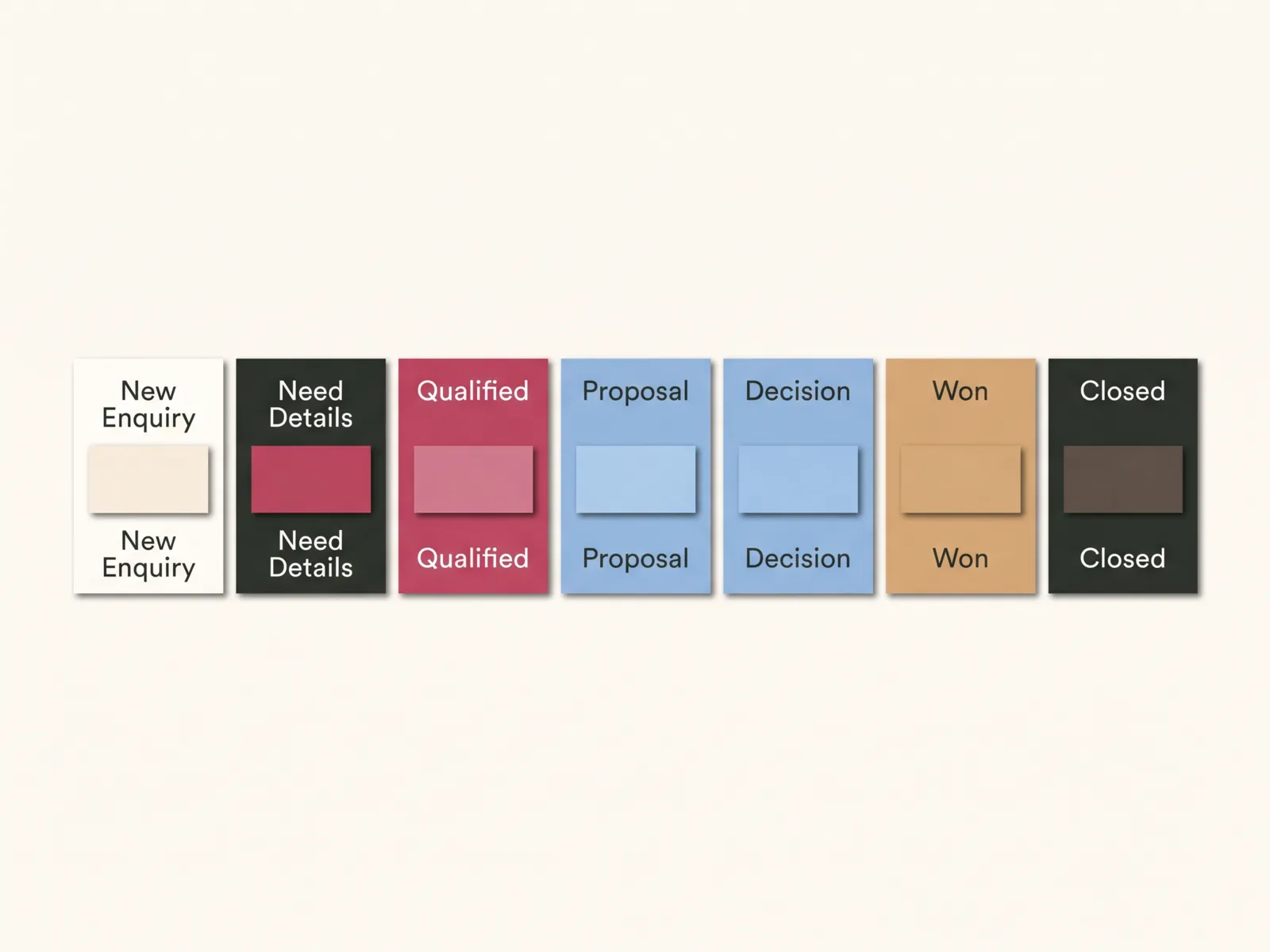
Name each stage after something that has happened. For example, a freelancer might use New enquiry, Need details, Qualified, Proposal sent, Decision pending, Won and Closed. Give each prospect one current stage and record the next action in its own field.
| Stage | What it means | Possible next action |
|---|---|---|
| New enquiry | A person has contacted you | Read the request and decide what to ask |
| Need details | You lack information to assess the work | Ask one focused question |
| Qualified | The request appears to fit your services | Arrange a scope discussion |
| Proposal sent | You sent a price or plan | Record when to check for a decision |
| Decision pending | The prospect is considering the offer | Follow the timing discussed |
| Won | You agreed to start | Move the work into your client workflow |
| Closed | The person declined or stopped responding | Record the reason if useful, then stop follow-up |
Your stages can differ. A writer may need “sample requested”; a designer may use “assets received.” Avoid a long list that makes routine updates slower. If the labels do not tell you what to do, simplify them.
Keep “status” and “next action” as separate fields. “Proposal sent” describes the lead's position. “Email Morgan on Friday to ask whether the scope needs changes” describes your next move. That makes a filtered view useful without turning every stage into a new custom label.
Set a follow-up date that fits the conversation
Set the next-contact date from the conversation, any deadline and the work you owe. If the prospect asked you to check back after a budget meeting, use that date. If you promised a proposal, first set a date to send it; choose a decision follow-up after that.
Add a short reason beside the date, such as “They are comparing options this week; check in after Thursday.” That context helps you write a relevant message. A preset daily or weekly sequence will not suit every enquiry.
Keep separate dates for tasks you owe and dates when you expect a response. For example, “send the estimate” is your task. “Check whether the proposal arrived” is a later follow-up. If the prospect gives you a specific date, use it. Otherwise choose a review date that is reasonable for the service and conversation.
Notion's database properties guide describes date and status properties. Its reminders guide explains reminders on dates. A due-date view can help you find work; it does not draft a message or decide whether contacting someone is appropriate.

Keep the next action concrete
Make each action specific enough to do without rereading the conversation. “Follow up” gives you little to work with. “Send the estimate with two scope options” tells you what to prepare. “Ask whether the launch date is still 1 December” gives you the question.
For each open lead, keep one next action. If there are several tasks, create a short task list or link the proposal and call notes. The lead record should still show the next thing that moves the conversation forward. Review it after you send a proposal or receive a reply, then update the stage and date.
A simple example: Jamie asks about a logo and a small brand guide. You need to confirm the number of concepts and the delivery date before pricing. Record the lead as “Need details,” set the action to “Ask about concept count and launch date,” then update the record after Jamie replies. The example is hypothetical; its purpose is to show what the fields are for.

Review open leads once a week
Use a weekly scan to find enquiries and proposals that need attention. Sort by next-action date. Check overdue items first, then what is due soon, and close records that no longer need follow-up.
For each lead, ask:
- Did I do the action I recorded?
- Did the person respond or give a different date?
- Is the request still a fit for my services and schedule?
- What is the next action, and when should I review it?
- Should I move this into an active client workflow or close it?
If a lead is quiet, use the context you have and follow any preference the person shared. One polite, relevant check-in may be enough. If there is no reply after your chosen follow-up, close the lead or leave it parked with a clear reason. A tracker should support your judgment, not create an obligation to message someone repeatedly.
Build the tracker in a spreadsheet or Notion
For a short list, use one spreadsheet row per lead. Add columns for name, request, source, status, last contact, next action and its date. Freeze the header and filter by date or status if it helps you find today's work.
Notion can suit a process where lead details need links to notes, proposals or later client and project records. A database is a collection of pages with properties; a view can filter or sort those records. Notion's views guide explains filters and sorts. Database automations can run actions when a database changes. Notion says most database automations require a paid plan; free-plan users can create Slack notification automations and use existing automations in templates. Check current plan details and test an automation before depending on it.
A template does not itself create your follow-up habit. For the wider setup, start with the Notion freelancer template guide. When an enquiry becomes a client, the Notion freelance CRM guide covers organizing the client and project records. The lead stage belongs to your prospect workflow; an accepted project belongs in client delivery.
Try the process with three open enquiries
Try the tracker on three current enquiries before importing old contacts. For each, record the source, request, stage and last interaction. Choose a next action and set a date, then use the list for one review.
At the review, see whether you can answer why each person is still open and what you will do next. If two fields say the same thing, remove one. If you cannot find the proposal, add a link or a clear location. If a lead has already declined, close it rather than leaving it in the active view.
This small trial can expose gaps before you copy years of contacts. Keep any information you need for legal, contract or financial records in the right source system. A lead tracker is an index for follow-up, not a replacement for signed agreements, email history or invoice records.
What moves a lead forward?
A lead usually needs one of three things from you: a clarifying question, a proposal, or a decision point. The record should make that next move visible, along with the information you need to do it well.
- Ask before estimating. If the scope is unclear, record the missing detail and ask for it. A price based on a guess can create a mismatch later.
- Send the proposal you discussed. Link it from the lead record and note when you sent it. A “proposal sent” status without the file or date may not help you find it.
- Set an agreed check-in. Use the prospect's timing where possible. If they did not give a date, choose a reasonable review point and make the reason clear.
- Close the loop. If the person declines, update the record and stop the active reminder. If they accept, move the work into your client and project process.
A useful tracker can show open enquiries, proposals awaiting a decision and the next action due. It will not decide which work to accept, set your prices or send a message for you. For a broader freelance setup, see the records included in Notion Freelancer OS and compare them with your current client and project process.
Why Trust This Article
Notion Freelancer OS by Cosmo Suite publishes this guide and sells a Notion template for freelance administration. The Notion features described here were checked against Notion's official help pages on 11 November 2026. The example is hypothetical. Review your own contracts, privacy obligations and communication preferences before changing how you store or follow up with leads. Read our editorial policy for how we handle corrections and sourcing.
Where Notion Freelancer OS Fits In
Notion Freelancer OS includes records for clients, projects, invoices, proposals, contracts, timesheets and meetings, with income, expense and profit-versus-target tracking. It is a manually updated Notion workspace template. The contents list does not claim automatic lead capture, email sequences or payment processing.
If you want those records arranged in one workspace, review Notion Freelancer OS and compare its contents with the fields you need. Keep your email or calendar as the source for actual messages and appointments. If a spreadsheet already answers your follow-up questions, you can use the field list here without changing tools.
Frequently asked questions
What should a freelance lead follow-up tracker include?
Record the person's name, enquiry source, requested service, status, last contact, next action and its date. Add a proposal link or short note if it helps you resume the conversation. Keep sensitive client details in the appropriate system, and store only the follow-up information you need.
How often should freelancers follow up with a lead?
Set the date from what you agreed with the prospect or from the next step in the conversation. No interval fits every service or buying decision. Add a reason to the record so a reminder does not turn into a sequence that ignores the person's timing.
Can I make a freelance lead tracker in Notion?
Yes. Add status, date and source properties to a Notion database, then use views to find leads due for action. You enter the details and contact prospects yourself unless you connect a separate automation. Test reminder settings before relying on them.
What is the difference between a lead tracker and a client tracker?
A lead tracker follows an enquiry through qualification, proposal and decision, before you agree to the work. A client tracker holds an active or past relationship and its projects or delivery dates. When a prospect accepts, move or link the record to your client workflow.
Should I use a spreadsheet or Notion for freelance leads?
A spreadsheet often works for a short list with a few columns. Notion can help when a lead needs links to proposal notes, client records or projects. Try your current enquiries in both and keep the format you can update accurately.
Can a Notion tracker send follow-up emails automatically?
A database view can show which records need attention, but it does not send an email by itself. Notion database automations can take actions when a database changes. Most require a paid plan; free-plan users can create Slack notification automations. Check the current [automation requirements](https://www.notion.com/help/database-automations) and test your workflow. Notion Freelancer OS is manually updated and does not claim to send messages.
Sources
Keep reading
Freelance Admin
Notion Freelance CRM: Track Clients, Leads and Next Steps
notion freelance crm: organize client and project records in Notion, set useful follow-up fields, and review open work without automated reminders.
· 8 min read
Freelance Admin
Notion Freelancer Template: Choose and Set Up Your Dashboard
notion freelancer template: choose useful client, project and invoice records, set up your dashboard, and build a weekly review you can maintain.
· 9 min read
Freelance Admin
Freelance Client Tracker: Organize Projects, Dates, and Follow-Ups
Freelance client tracker: organize active work, due dates and the next client action in one view, with a practical setup for Notion or a spreadsheet.
· 8 min read
