Freelance Project Tracker in Notion: A Simple Setup for Deliverables and Deadlines
Freelance project tracker Notion setup: track deliverables, stages, dates and next actions in one small workflow, with a sample project and review routine.
By Notion Freelancer OS by Cosmo Suite · Editorial policy
Published · 8 min read
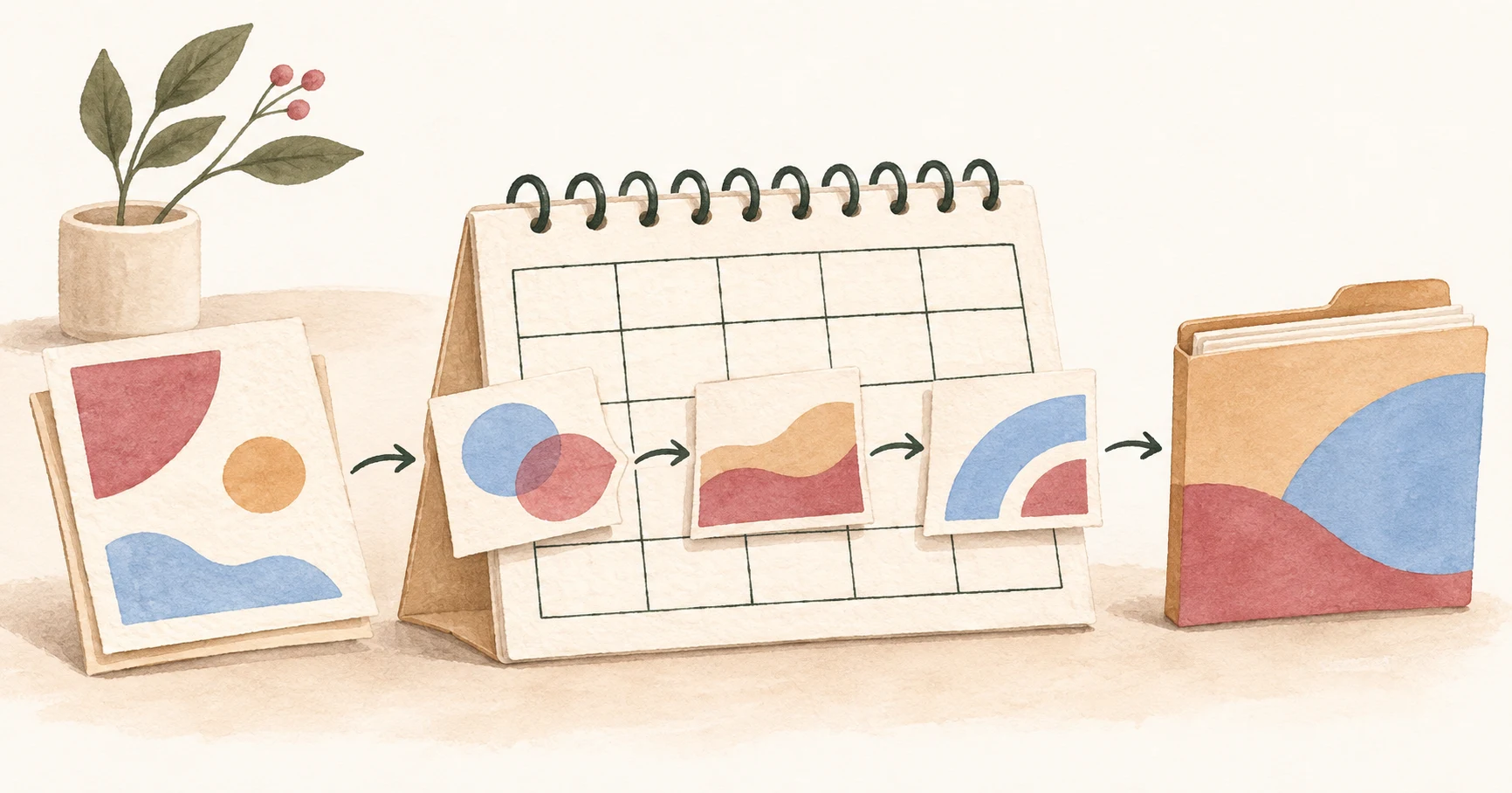
A freelance project tracker in Notion can show what you agreed to deliver, what stage each project is in, and the next dated action. Start with one project database. Add a separate task database only when work has enough steps to need its own dates or statuses.
Open the tracker and check whether you can see what is due, what is waiting, and what to do next. Leave out fields that do not help answer those questions. The setup below uses a sample web project and a weekly review to keep the list current.
Key Takeaways
- Keep the project record focused on scope, stage, delivery date and next action.
- Use task records when separate pieces of work need their own dates or status.
- Build views for active, waiting and upcoming work from the same records.
- Label example projects and amounts as hypothetical, and keep client facts in the proper source.
- Review the tracker against current messages and files before relying on it.
What belongs in a freelance project tracker?
A freelance project tracker is a list of active and completed jobs, with enough detail to decide what happens next. Keep the main record short. Add a task record only when a deliverable needs its own owner, due date or progress state.
| Record | Useful fields | Question it answers | Best for |
|---|---|---|---|
| Project | Name, client, scope, stage, delivery date, next action | What work is agreed and where does it stand? | One client engagement or job |
| Task | Project, action, owner, status, due date | Which piece of work moves this project forward? | Several steps with separate deadlines |
| Milestone | Project, checkpoint, date, acceptance note | What needs review before final delivery? | Jobs with scheduled approvals or handoffs |
These records describe work, not payments. Keep invoice references and confirmed receipts in your invoice or finance process. The freelance client tracker guide covers client and project links. Check invoice details in the system that issued the invoice and confirm receipts where the money arrived.
If you want a broader starting workspace, Notion Freelancer OS includes project records alongside business and finance areas. Check the published contents against your own workflow before choosing it.
Decide whether tasks need their own records
Keep a short checklist on the project page when a job has only a few actions. Create a separate task database when tasks repeat across projects or need different dates, owners, or views. Each database adds setup and upkeep, so split the records when the distinction helps you plan or review the work.
For example, a hypothetical website refresh could have one project record and four task records: confirm the page list, draft the homepage, collect review notes, and prepare final files. The project has the overall delivery date. Each task has its own due date and status. A small brochure edit with one draft and one review may need only a checklist on its project page.
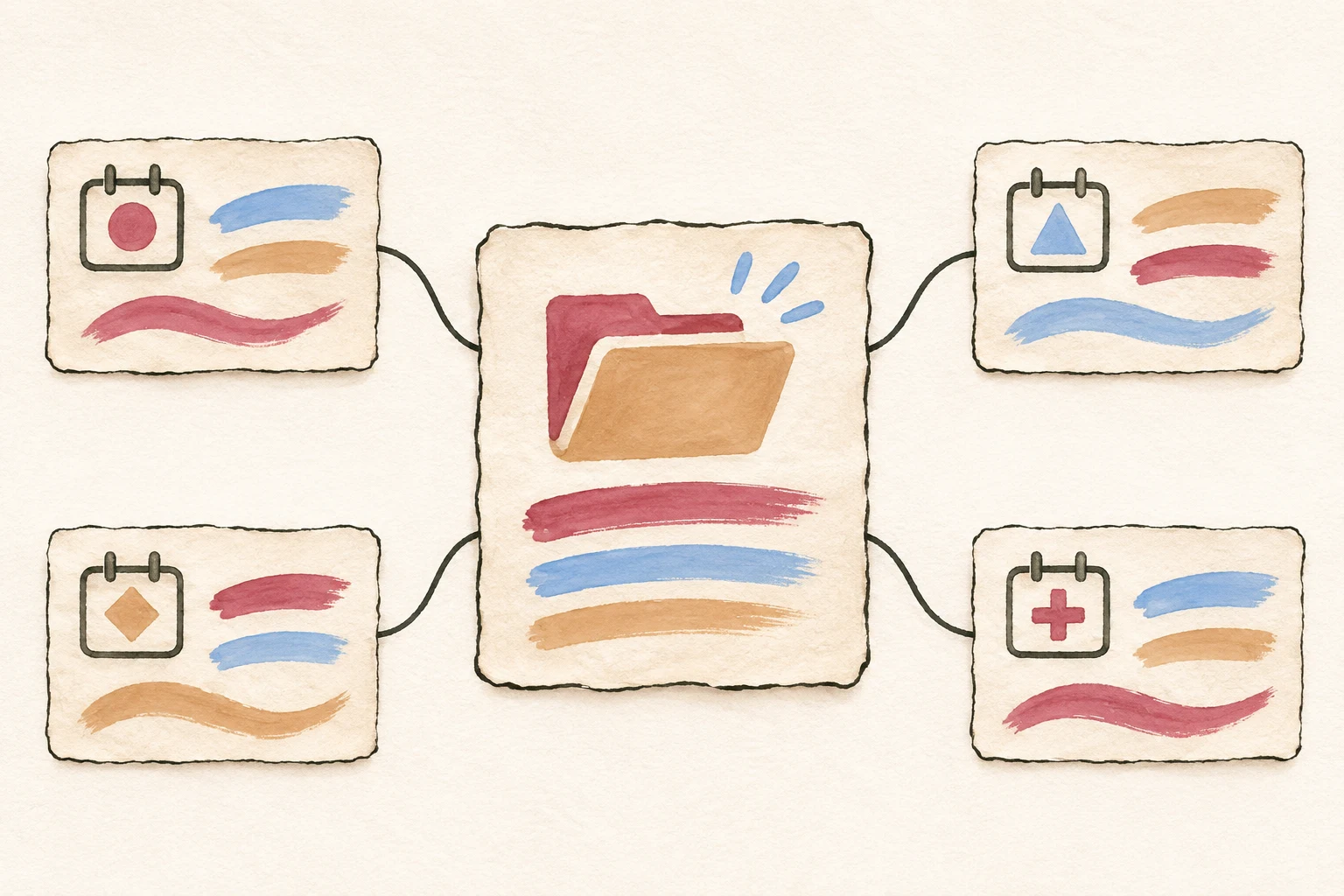
In Notion, a database is a collection of pages. Properties store details such as a date, status, number, or relation. A relation can connect a task to its project, so you can open the project and see its related work. Notion explains database items and linked data sources in its database introduction.
If you split tasks into their own database, make each row a checkable action. A broad label such as “design” is hard to close because it does not say what should be ready. “Send the homepage draft for review” gives you a visible result and a next step. Use a date when timing matters, and use an owner only when another person needs to act.
To connect the records, add a Project relation property to the task database and select the matching project on each task. Then place a linked task view on the project page and filter it to that project. Check the view with one sample task before entering the rest. If the task list is difficult to find or the relation feels like extra work, keep the checklist on the project page instead.
Choose fields that support a decision
Start with fields that identify the work and show the next step. You can add a property later if you find yourself repeatedly searching messages or files for the same detail.
| Project property | Example | Why keep it |
|---|---|---|
| Project name | Website refresh | Identifies the job |
| Client | Acme Studio | Connects work to the client record |
| Deliverable or scope | Five revised service pages | States what the project covers |
| Status | In progress | Shows the current stage |
| Delivery date | 18 June | Gives the overall target date |
| Next action | Send homepage draft for review | Makes the next move concrete |
| Next action date | 10 June | Helps order work that needs attention |
| Source link | Project brief or folder | Points to the agreed details |
Choose field types to match their job. A status property works for a small, defined stage list. A date property can support calendar views and reminders. A text field is often enough for a short next action. Notion documents its available types in the database properties guide.
Avoid adding a “percent complete” field unless you have a clear way to update it. A project marked 60% complete may not tell you whether you owe a draft today or are waiting for a decision. A dated action usually answers that more directly.
Set stages that tell you what to do
Keep project statuses distinct and define the event that moves a job from one to another. “In progress” can mean you are working on an agreed deliverable. “Waiting” can mean the next step depends on a client decision. “Complete” should mean the agreed work is delivered or closed according to your own process.
| Status | Use it when | Next question |
|---|---|---|
| Planned | The project is agreed but work has not started | What is the first scheduled action? |
| In progress | You have an active deliverable to work on | What will you send or finish next? |
| Waiting | A decision, file or response is needed | Who is expected to act, and when will you check? |
| Complete | The agreed work is delivered or closed | Is there a record or handoff to keep? |
You may need a separate “On hold” status for paused work, but add it only if it changes how you review projects. Do not make “Overdue” a manual status if it would require frequent cleanup. Use a due-date view to find late dates, then check the source record before deciding what they mean.
Build views for the work you review
Create a small number of views that make the next action easy to find. A table view gives you a compact list. A board can group projects by status. A calendar or timeline can show dates. Notion lets the same database appear in multiple views, each with its own filters, sorts and layout settings; see its views guide.
Start with three views:
- Active projects: filter out Complete and sort by delivery date.
- Waiting: show projects whose status is Waiting, then sort by the next check date.
- Upcoming tasks: show open tasks with a due date in your chosen review window.

Keep one unfiltered table view for the full record set. A filtered view can hide items by design, so use the full table when checking history or updating a status. If you add a reminder to a date, verify it in Notion's current reminder instructions and test the notification in your own workspace. A view is a way to see records; it does not send a client update.
Work one example through the tracker
Use a single project to test your fields and views before adding old jobs. Consider a hypothetical website refresh with a delivery date of 18 June. The agreed work is five revised service pages. You split it into four tasks: confirm the page list, draft the homepage, collect review notes, and prepare final files.
The project record holds the agreed scope, overall date, status, and a link to the brief. Each task record links back to that project. When the page list is confirmed, mark that task complete and move the next one to In progress. When you send the draft, record the waiting action and a date to check for feedback.

The names, deliverables, and dates in this setup are hypothetical. For real work, check the agreement and current client messages before changing scope or moving a delivery date. Keep links to those sources on the project record.
Use a weekly review to keep it current
A short review can catch stale dates and unclear next steps. Open the Active projects view and ask what changed since the last review, what is due soon, and what is waiting on someone else. Then check the brief, task file, or client conversation before editing a material detail.
For each project, update only what changed:
- Confirm the current status from the latest work or decision.
- Check the next deliverable and its due date against the source agreement.
- Write one next action in plain language and add a date if useful.
- For Waiting items, record what you need and when you will check again.
- Close work that is delivered, and keep a source link if you need the history.
The weekly review is a routine, not a timer promise. Choose a time that fits your workload and check urgent items more often. If your project list has few changes, the review may be brief. If dates moved or feedback arrived, update the affected records while the context is fresh.
Know when a spreadsheet is enough
A spreadsheet may be easier when you have a short list, one row per project, and few related tasks. Notion may fit when project pages need connected tasks, working notes, and several views. The trade-off is structure: relations can reduce repeated entry, but every extra field and database needs maintenance.
If you are unsure, put one current project in a simple spreadsheet and a Notion database. Try to find the same three things in each: due work, waiting items, and the next action. Keep the setup that makes those answers clear with less upkeep. The spreadsheet versus Notion guide for freelancers gives a broader comparison of the two tools.
Notion Freelancer OS is published by Cosmo Suite. You can review the workspace contents if you want project, client, and finance records in one Notion template. A spreadsheet or your existing project tool may be enough if it already gives you a clear view of active work. Read About Cosmo Suite for publisher information, use the contact page for corrections, or see the editorial policy for how we prepare articles.
Before you add another field, ask what decision it will help you make. If it does not clarify scope, status, date, or next action, leave it out until the need appears.
Frequently asked questions
What should a freelance project tracker include?
Start with the project name, client, agreed deliverable, status, due date, next action and a link to the working brief. Add milestones only when they change what you need to do. Keep invoice and payment details in their own records.
Can I track freelance projects in Notion?
Yes. A Notion database can hold project pages and properties such as dates, status, numbers and relations. You can create table, board, calendar or timeline views from the same database. You choose the fields and keep the records current.
Should tasks and projects be in separate databases?
Use separate records when one project has several tasks with different owners, dates or statuses. Connect each task to its project. For a small job with one or two actions, a checklist inside the project page may be easier to maintain.
How many project statuses should I use?
Use the fewest statuses that help you choose the next action. A simple set could be Planned, In progress, Waiting, and Complete. Define when a project enters each status so the board does not become a collection of vague labels.
Can a Notion project tracker send deadline reminders?
You can add a reminder to a date property, but a calendar or filtered view is not itself a reminder. Test the notification and check your workspace settings. A reminder also does not tell a client that work is late or complete.
Is a spreadsheet or Notion better for project tracking?
A spreadsheet works well for a short, flat list with few links between records. Notion can help when each project needs its own notes, task list or related pages. Try the same active project in both before adding more structure.
How often should I update a project tracker?
Update the status when work changes or a client decision changes the next step. Then review due dates and waiting items on a weekly routine that fits your workload. The tracker only helps when it reflects what you currently know.
